As someone who travels by train frequently, the best purchase I made in 2024 was a Steam Deck for playing games on the go. Being able to play PC games whenever I want still feels like a luxury to me because, for a long time, laptops couldn't handle modern games. Well, they could, but only if you were willing to spend a lot of money and endure the discomfort of a laptop burning your thighs.
However, hardware has evolved, and there is no shortage of laptops and handhelds that can handle the latest games with ease. Laptops have replaced desktops as the dominant form factor, and the Nintendo Switch has outsold the Xbox Series X and PlayStation 5 by a wide margin.
This means that if you're a game developer, there's a good chance your game is being played on a device that's not currently plugged in.
Unfortunately, most devices don't have great battery life. When playing very demanding games, both the Steam Deck and the Switch batteries last about two hours. That battery life only deteriorates over time.
In fact, Valve is currently experimenting with limiting the Steam Deck's battery charge to 80% to reduce degradation. While this will help extend the device's life, it will further reduce the maximum length of battery-powered sessions.
If you're planning to play a game on a three-hour train ride, make sure you have your charger and sit next to an electrical outlet. Otherwise, your gaming session may end sooner than you'd like. As a game developer, this means that if you want people to play your game, it's important to ensure that your game doesn't use too much power. However, I don't often see power consumption mentioned when it comes to game optimization. It's a shame because there are often simple ways to improve the situation significantly.
So, I began researching the topic myself. Below, you'll find several techniques to improve your game's energy efficiency. They vary in effectiveness and the amount of effort needed. Not every approach works for every game, so think of this more as a list of ideas than a comprehensive checklist.
Measurements
Obviously, the first thing you need to optimize your game's power consumption is a power meter. I just ordered the cheapest one I could find: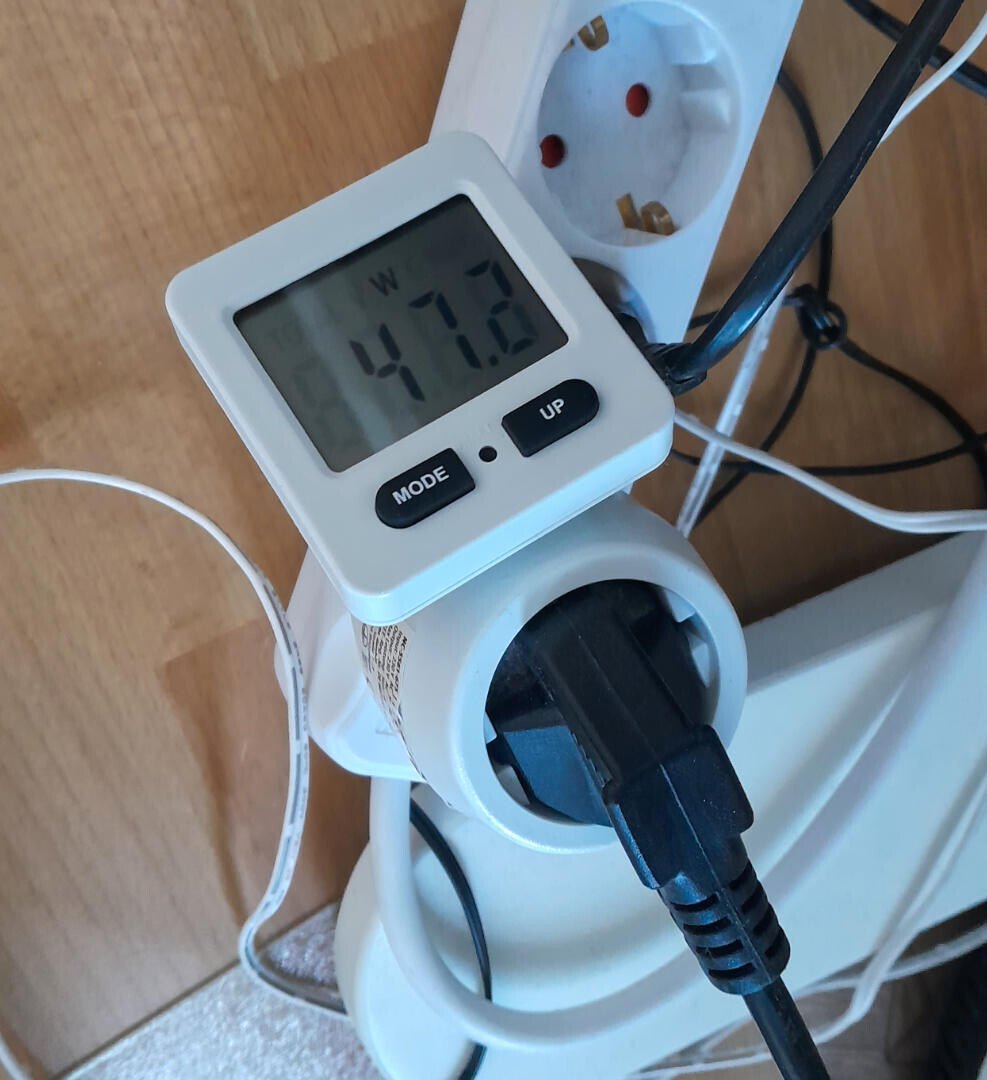 Although it doesn't offer any fancy extra features, it provides enough to confirm or disprove basic assumptions. Look at the display and enable the option in your game that you think will improve battery life. Wait a few seconds for the consumption to drop and stabilize. Then, note the new consumption rate. Since power consumption fluctuates greatly, repeat this process a few times to get an average.
Since the measurements aren't very precise, this approach only works for optimizing large differences in power consumption. To measure the impact of smaller adjustments, you need a device that allows you to track and average consumption over several minutes
Setup Notes
Before you begin, ensure your laptop's battery is fully charged so you're not measuring its charging throughput. Close any other software and disconnect your laptop from the internet to ensure your measurements aren't affected by background tasks. Note that power consumption can vary depending on factors such as room temperature or the surface on which the laptop is placed, so results from different days or locations aren't necessarily comparable.
Dark Mode
We're used to seeing dark modes on apps and websites. However, they are a rare exception in games. This is unfortunate, and not just for aesthetic reasons. OLED screens use different amounts of power depending on how bright each pixel is. Therefore, if your game has a lot of user interface elements, offering a dark mode can extend your battery life. This test shows that switching from a white to a black screen can save up to 15 watts.
Therefore, if your game has many full-screen menus, offering a dark mode can significantly extend the battery life.
Frame Limits
If you take only one piece of advice from this article, let it be this: Add a configurable frame limit to your game. While it's possible to limit the frame rate using tools like the Nvidia control panel or AMD Software: Adrenalin Edition, most users don't have these tools installed or even know they exist. Even if they did, it's much more convenient to have these settings in the game.
It's just good practice, not to mention that it can reduce your game's power consumption. Many modern monitors support refresh rates of up to 240 Hz. While that makes for a smooth image in office applications, most games won't ever reach those frame rates.
If you run a game without a frame limit on a screen with such a high refresh rate, the GPU will try to reach that high number. This will cause it to heat up and produce an inconsistent frame rate. Even if an uncapped frame rate is higher on average than a capped one, it won't necessarily feel smoother because it's so inconsistent.
This is especially problematic when neither the CPU nor the GPU has much to do. In these situations, the GPU isn't held back by the CPU and can render far more frames than necessary. On laptops, you may notice that the fans get louder when the menu is open because menu screens are an example of this scenario: The game wastes a lot of energy rendering static menus at an insanely high frame rate when the actual in-game frame rate is much lower.
Ironically, an uncapped frame rate can even reduce the effective frame rate because the GPU can overheat, causing the driver to reduce the clock speed.
Even on 60 Hz displays, a frame limit is a valuable option because many people are happy to run their games at 30 fps, especially if it increases their battery life. Depending on the game, even lower fps may be acceptable.
VSync
It's impossible to discuss frame rate limits without also talking about Vsync. It often serves as a basic frame rate limiter because it caps the frame rate at the screen's refresh rate. However, some games don't even meet this standard and don't offer players a Vsync option. The first Witcher game is guilty of that sin:
It probably wasn't that noticeable back then, but on a modern PC, it's easy to reach several hundred fps during gameplay. Consequently, this game's power consumption may be higher than that of recent games like Baldur's Gate 3.
It would be a mistake, though, to think of VSync as a frame rate replacement. Since it causes additional input lag, many players prefer not to use VSync in fast-paced action games. If your game relies on VSync to limit the frame rate, players may choose not to use it. The screenshot below shows Tabletop Simulator running at over 600 fps with VSync disabled:

(I know the Tabletop Simulator isn't a game where input lag matters much, but bear with me. It's just an example.)
Profiling Results
First, I lowered my laptop's refresh rate from 240 Hz to 60 Hz to test the basic assumption that fewer frames means less energy consumption. This reduced its power consumption from approximately 45 watts to approximately 40 watts when displaying the Windows desktop. Not bad, but how does it perform with actual games?
Baldur's Gate 3 used 149 watts with an unlimited frame rate and achieved ~150 fps. Limiting the fps to 60 reduced power consumption to 112 watts, and limiting it to 30 fps reduced it to 93 watts. That's an impressive 38% less than without the frame limit. However, further reducing the frame rate only yielded a slight decrease in power consumption, dropping to 86 watts.
Optimize your Game
This section is different from the others because, even though it's technically plausible, I don't actually recommend this approach. The idea is simple. The less work you give the CPU and GPU, the less power they use. Therefore, reducing the workload and eliminating unnecessary calculations makes the game use less energy. However, this approach is naive and ineffective. Most games are already highly optimized. Optimizing for power consumption means optimizing everything, rather than focusing on the game's bottlenecks as you would when optimizing for frame rate.
There probably isn't much potential left anyway because the game code is usually well optimized to begin with. Further optimizing the game would require a lot of effort and wouldn't be worth it.
However, there are exceptions to this rule. One of them is menus:
Optimize your Menu Screens
Menu screens are often overlooked when optimizing games. As mentioned above, the goal is to optimize bottlenecks and problematic situations, and menu screens are typically not an issue. The gameplay is paused, and no new assets need to be streamed in. If it's the main menu at the start of the game, then most things that could cause performance issues haven't been loaded yet. Therefore, menu screens are often not optimized very well. However, when optimizing the game's power consumption, menu screens offer significant potential savings with minimal effort. If you expect your players to spend a significant amount of time in the menus, it may be worth your time to optimize them.
Example Implementation in Unreal
The Lyra Starter Game project, provided by Epic for Unreal users, is a good test case for this. This is what the settings menu looks like in this game:
Technically, the game world is still visible, but it's so dark and blurry that it might as well not be. Let's replace the background blur widget with a tiling texture:
Visually, the result doesn't look very different, but the actual game world is no longer visible. However, the game isn't paused, and the game world is still rendered even though it's not visible. The game still uses as much energy as during gameplay: around 91 watts in my tests. This can be easily fixed by stopping the rendering as soon as the menu is opened using the Set Enable World Rendering node:
(Remember to call this node again when closing the menu to ensure the world is rendered again.)
Opening the same menu with world rendering disabled results in a 35% decrease in power consumption, from 93 to 59 watts. You could save even more energy by pausing the gameplay logic while in the menu.
If you really want to keep the transparent menus, you can take a screenshot when you open the menu and display that while the menu is open. If you don't want to pause the game or change the background, you can reduce the rendering resolution instead. Since the game is blurred anyway, even ridiculously low resolutions are fine: In this screenshot, the screen percentage is reduced to just 10%. In case you are not familiar with how screen percentage works in Unreal: It scales the internal resolution used to render the image. For example, if the output resolution is 2560x1440 and the screen percentage is 10%, then the internal resolution is 256x144 pixels. This means the number of pixels rendered drops by 99%!
Such a low resolution would be unacceptable in any other situation but is perfectly fine for a blurred menu background. It's not as efficient as disabling the rendering completely, but in my tests, the power consumption was just slightly >60 watts.
One might argue that most players don't spend much time in the settings menu, so this change has an insignificant impact. While this may be true for the settings menu alone, the impact adds up when applied to other full-screen menus. In multiplayer shooters, a significant portion of every game session is spent in the main menu, server browser, map selection, loadout customization, lobby, and so on. In other genres, such as RPGs, simulations, and strategy games, large portions of the gameplay often occur in separate menus that hide the game world completely, making this an even more effective optimization.
Add more Scalability Settings
Similar to the frame limit, this tip is a no-brainer. Scalability settings allow users to decide how much battery life they are willing to sacrifice for better graphics. It's important for more than just that, though. Many developers forget how many old PCs and laptops are still in use. So, even if you have low, medium, and high settings, take a step back and think about how much time it would take to implement a very low setting. Not that much, right? Don't worry if things look ugly; it's better than not being able to play the game at all. If the game looks too bad on the lowest settings, people can choose not to play it with those settings. Without them, however, they might not have that choice.
When it comes to power consumption, pay special attention to the upsampling options. On small handhelds like the Steam Deck, for example, the effective resolution can be quite low yet still acceptable.
Profiling Results
In Baldur's Gate 3, using DLSS Performance instead of Quality reduced power consumption from 112 to 101 watts. To ensure that the performance savings actually saved energy and didn't just increase the fps, I limited the frame rate to 60 fps when testing this.
Save Energy when no one is watching
Obviously, the worst way to use your battery charge is to render a game that isn't currently being played. Perhaps the player put their laptop down to get coffee, use the restroom, talk to their seat neighbor, check their phone, or fell asleep. Still, the game is running, completely unfazed. The solution is surprisingly simple: Measure the time since the last player input and enable energy-saving options once a threshold is reached. This doesn't have to be as invasive as turning off the screen, like on mobile phones. You could just reduce the resolution or the maximum frame rate. If you're interested in this approach, this white paper from Epic about Fortnite's power-saving options is a good starting point and also goes into some Unreal-specific implementation details.

In Fortnite, the resolution only changes in front-end screens, such as the lobby. However, nothing is stopping you from doing this during gameplay. That being said, this works better for some games than for others. In a simulation game like The Sims, for example, if the player isn't touching the controls, it could mean that they're observing the simulation to see how it unfolds. In games with lengthy cut scenes, you may want to pause this feature whenever a cut scene starts. In a shooter or racing game, though, you can safely assume that the player isn't playing after just a few seconds of inactivity.
The whitepaper also covers focus detection. When running on Windows, focus detection allows you to enable energy-saving settings when the game window is in the background. While we all want our game to be the sole focus, many players have their browser open while gaming to look at walkthroughs, check mails, and do other things. For these players, this optimization can make a real difference.
Detect whether you're running on Battery
One of the most obvious steps you can take to reduce your game's impact on battery life is to determine whether your game is running on a battery-powered device. This allows you to automatically adjust settings when the device is unplugged.
Unreal
In Unreal, you can use the IsRunningOnBattery() function. This function is implemented for each platform. For Windows it looks like this:

The function only returns a bool, to be consistent with the corresponding functions for other platforms, but internally, it also has information about the currently available capacity, so you could implement your own function that returns that instead.
Pro tip: When playing a game, it's easy to overlook Windows' low battery warnings. Perhaps your game could take over the responsibility of warning the user when the battery is about to run out.
Unity
In Unity, you can get the current battery status from the System Info.
Closing Thoughts
I'm not sure how each of the mentioned techniques applies to your game, but I'm confident that using them will improve its energy efficiency.
Although this article focuses on improving battery life, I want to emphasize that creating energy-efficient games has many benefits beyond battery life.
Even if you expect all your players to use PCs or consoles connected to the grid, overheating GPUs and loud fans didn't exist, and all players got their power from renewable energy, improving energy efficiency would still be worthwhile.
When you develop a game, you create something that potentially thousands of people will play. Therefore, every time you change something in your game to consume less energy, the cumulative effect across thousands of devices adds up. While I'm aware that video games' contribution to climate change is minimal, I hope you take pride in ensuring that they don't contribute more than necessary.
If you enjoyed this article or found it useful, please share it with others! If you have any comments, questions, or feedback, please post them below. To get informed about new articles, follow me on Artstation, on Mastodon or Bluesky.
You can also find this article on my WordPress blog.