Website powered by

Tints and why you shouldn’t use them

General / 07 April 2023

Anyone who works with game art is probably familiar with tints.
They are one of the most commonly used techniques among game artists and level designers to quickly adjust the visuals of their assets.
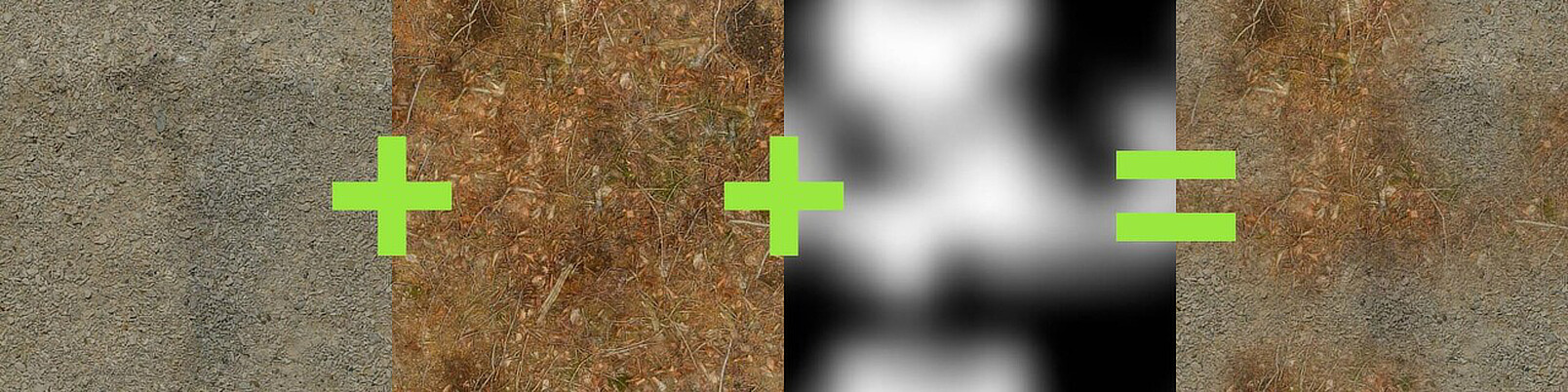
To use a tint, you just multiply a color with your existing color information (often coming from a texture):Because it's is a simple math concept, it's easy to add to any material and is often used routinely.
Tints can be used to match colors between multiple assets, create variations to hide the repeated use of the same asset or to fine-tune visuals without the need to adjust the original artwork.
However, as it is often the case with widely used tools, they are often used without making sure that they are the best solution for the given situation. When used incorrectly, they can compromise both the quality of your artwork and the efficiency of your workflows.

The purpose of this article is to point out some of the pitfalls of tints and how to avoid them. And while the hyperbolic title might suggest otherwise, the goal of this article is not to condemn tints in general. Rather, the goal is to raise awareness of when and how to use them properly, rather than routinely applying them to all materials. They are still a valuable tool. They are just used far more often than they should be.
Disclaimer: While the topic of this article is engine-agnostic, I'm an avid Unreal user, so sometimes I'll slip into Unreal jargon or mention Unreal-specific features. But there is usually something equivalent in your game engine of your choice.

Single Source of Truth

Level designers and environment artists love tints to quickly adjust the colors across their levels and adjust the artwork for that final layer of polish that turns individual assets into a cohesive whole. And yes, it's fun to adjust the colors for individual assets throughout your level and tweak the color of each individual instance. The problem with this workflow is that the tint is not the only place in the pipeline where adjustments are made. There are usually a few more:

  1. The texture artist defines the original color of the asset, usually following an art guide with a defined color palette.
  2. Engines like Unreal allow you to adjust the colors on textures during the import process. This can be very useful to ensure that a set of textures will work together without having to touch the original artwork.
  3. The texture can be modified in the material in many ways, but for the sake of simplicity, let's say that the material only applies a tint and returns the result as the base color.
  4. Once a material is applied to a mesh in a level, the final color of the material is not just determined solely by the material's base color output, but also by the lighting in the scene.
  5. In most cases, the final image is color-graded in multiple ways. Depending on what's in your post-processing stack, these adjustments can range from simple tonemapping, color grading to the use of LUTs and other shader effects.

Often, artists are unaware of how exactly the final color is achieved and thus adjust the visuals in the wrong place.

Let's say the lighting of a level is overly warm and the lighting artist wants the lighting to be cooler. But instead of reworking the lighting, they adjust the color grading. This can work fine and even look good at first glance, but can cause ramifications down the line: Now the next time the character artist has a look at the characters in the level, the skin got an unhealthy color, so they decide they have to adjust their textures to make sure the characters don't look that pale anymore. Now the lighting, the post processing and the textures are essentially fighting each other, becoming more and more extreme as a result, making every future adjustment a gamble since it's impossible to know how the next adjustment will affect this balance of power.

So when you see the final result in the viewport of your game engine and you don't like what you see, before you make any adjustments, ask yourself the question: Where in the pipeline is the error introduced and where do I want to fix it?

  • If the colors of the original texture are just plain wrong, adjusting the original source file or at least the import settings will yield the best results. Otherwise, it's easy to get stuck in a workflow where an identical tint is used on a variety of materials, all doing the same thing, just to fix a texture that doesn't fit the project's color palette. Eventually, another artist is going to use the same texture on another asset, without knowing about the tint they are supposed to use, resulting in inconsistent visuals. Or, even worse: You manage to keep your tints consistent, but then, months or years into the project, it's decided to adjust the game's color palette. Now, instead of just adjusting a single source texture, you find yourself tracking down dozens of materials to adjust all the tints that do the same thing.
  • If you suspect the lighting to be the culprit, make sure you have a neutral test scene in which to evaluate your assets. If the asset looks as intended in the test scene, you know that you need to change your lighting. And while PBR has been the standard for game rendering for years now, there are still people who need to hear it: Do not adjust your textures to fix your lighting!
  • Be careful with tinting when it comes to lighting. Unreal for example allows you to tint your skylight. While this can be helpful, be aware of the fact that there is usually a reason for the skylight to be the same color as the sky.
  • Finally, always make sure that your colors look at least OK without any color grading and post processing. Post processing should only be used for creative choices after the basic visuals are already working, not to fix problems with any of the previous steps.

While this has become a very long paragraph, it boils down to this: Make sure that no matter what you want to change, there should ideally be only one place to change it. Once you start to make adjustments to the same property in multiple places, the potential for unwanted behavior and inconsistencies increases exponentially. So if you don't need a tint, adding a tint option to your materials will only increase this.

In programming, this practice is called the Single Source of Truth. The idea is to always store and edit data in a single place, so that if the data is different than expected, you only have to look for the problem in that one place.

You could argue that this is not strictly a tint-related issue and you would be right. Still, extensively used tints are often one of the reasons why the visuals of a scene become unpredictable.

The Psychology of Tints

An interesting fact about tints is that many people who have them in their toolbox just want to use them. Maybe it's just a sense of fun, maybe it's because level designers are often given finished assets by artists and rarely have the opportunity to live out their artistic ambitions, but if you give people a tint, they'll use it. Even if it's not needed. And that's why you'll often see level designers tinting the grass green, the sky blue and the sand yellow. It's like a natural instinct that's hard to get rid of.

You'd be surprised how many real-life examples of this kind of tint exist!
The thing about these tints is that they actually hurt the visuals. They may look inconsequential at first sight, but most materials in the real world are not just a plain color. Grass isn't just green, it can also have yellowish tones, brown patches where it grows less densely or even contain completely different colors in the shape of small flowers, pebbles, and so on. Tinting a texture with its predominant color removes all of these subtleties while raising the saturation to levels that are usually unwanted.
It can also hurt image quality, which brings me to my next topic:

Tints don't do what you think they do - Luminance

Tints are often used to adjust the hue of texture, for example, to make a green grass texture appear yellowish. They also tend to increase saturation, as long as the tint color isn't a grayscale value or has a hue on the opposite side of the color wheel.
But since tints are a multiplication, and the used RGB values are usually between 0.0 - 1.0, they also affect the luminance, and the result will always be darker than before.

Why is this bad?

Especially since the advent of PBR rendering, the luminance of a texture isn't something you should change on a whim. With PBR, there are actually 'correct' values for base colors that can be measured in reality. Even if the texture is not based on that, the luminance values of textures within a project should maintain a certain consistency, and if they don't, that's not something to be fixed in a material.

Ok, but what if I still want to adjust luminance?

When adjusting the luminance of a texture, multiplying it by a constant factor isn't the way to go, because it removes all contrast from the texture. Using a tint to halve the luminance of a texture reduces the luminance range of the texture, resulting in a flat, unappealing texture that contains less detail:

It's even worse when using values higher than 1.0, since now we introduce color clipping:

As you can see in the image above, now a whole bunch of bright pixels that previously had different color values in all three channels now reach the limit of the color space and are clamped, resulting in areas that look like a uniform color.
The solution in both of these cases is to use exponentiation. By raising the color values to a power higher than 1.0 (to darken the image) and lower than 1.0 (to brighten the image), we ensure that the value range stays mostly intact and we primarily change the distribution of values in that range.

I really want to use tints, but without affecting the luminance, is there a way to do this?

While it adds some instructions, if you want to be on the safe side, you can normalize your tint before multiplying it with your texture:

This ensures that the luminosity stays roughly the same:

This works fine for rather neutral textures or subtle tints, but there are cases where it won't help:

Tints don't do what you think they do - Channels

Now that we've established that tints can inadvertently break the luminance of your textures, let's take a look at the next level of this problem. In the previous section, I considered luminance to be basically a single value, but as we all know, luminance exists for each channel separately, and it's easy for each individual channel to cause problems. The worst thing you can do with a tint is to try to change a texture to its complementary color.

Above, you can see how a predominantly green grass texture is tinted with a pure red. As you can see especially well in the desaturated version, the texture is noticeably darker as a result. This is because the green and blue channels of the red color are, not surprisingly, both 0.0.
So these channels of the source color are completely erased.
If a texture is to be used only in combination with tints, this problem can be solved by desaturating it:

Still, the subtle color shifts of the original texture are lost. The original texture had yellow flecks and different shades of green, but all those subtleties are gone. There are ways to preserve these details, described below.

Alternatives to Tints

So far, this article has mostly been a rant about why tints can cause problems. Let's now take a look at better ways to handle color adjustments at runtime:

Hue Shift
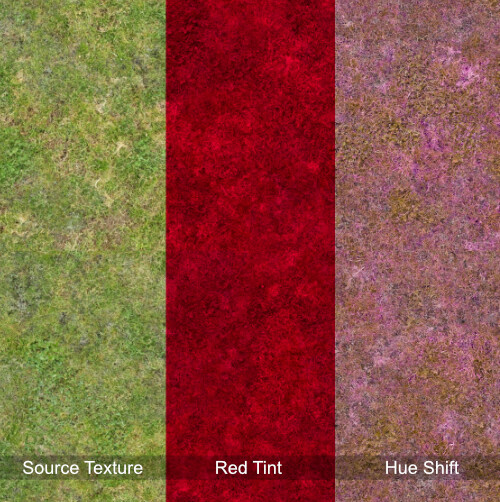
An easy to implement and effective way to add some color variation is a hue shift. Since it only changes the hue, both contrast and chromatic range are safe from unwanted changes. In the example above you can see how the hue-shifted texture still has the characteristic color changes of the source texture, while the red tint just completely erases these details.
The math behind the hue shift is a bit more complex, but still easy to understand and use. Unreal already provides a material function for this, but if you are using another development environment for your shaders, just think of your color as a vector and the hue shift as a rotation.

One problem with the hue shift is that the final result changes drastically depending on the hue of the source texture. So the same hue shift value will produce very different results for different textures.

Use HSV Color Representation

Since using RGB values for color adjustments is not very intuitive and can often cause unwanted side effects, consider converting your color information to the HSV format. It is often easier for artists to adjust these values:

Be careful though, the conversion back and forth between the color representation models does add a considerable number of instructions, so you may not want to routinely add this to all of your materials.

The Agents of Mayhem Way

This technique is more complex than the usual tint, because it requires you to create textures specifically for use with the tint. However, when used correctly, it can produce remarkable results. It was used in Volition's Agents of Mayhem, and was presented and explained in detail by James Taylor at the GDC 2017: https://www.gdcvault.com/play/1024690/-Agents-of-Mayhem-Physically
The technique is based on the insight that one of the biggest issues with tints, as described above, is that tints often clash with the original color of the texture. So what happens if you remove that color from the source texture, only keep the deviations from that color, and then add the color back in the shader? That's exactly what this technique does:

For this to work, you need to have a version of your texture that is basically a grayscale texture, where the only color present is the color difference from the tint color. This color is then desaturated and the difference is used as a mask between the original texture and the tinted version. For all the additional details I highly recommend going through the linked presentation slides; there are some really interesting insights into about how tints work and how they can be used effectively. And while Photoshop is the tool of choice in this case (as the presentation has aged a bit), it can be effectively recreated in Substance Designer and used as a filter in Substance Painter.

Update from 05.05.2025  

I was very intrigued by Agents of Mayhem's approach to customizable colors, so I took a lot of inspiration from it when designing the color customization system for Park Beyond. In Park Beyond, the base color texture is authored using a placeholder color and the texture is then processed to only contain the difference to that placeholder color. The custom color is then added in the shader:

As explained in the dev blog, the upcoming game Croakwood uses pretty much the same approach, but uses the OkLab color space, which aims to maintain a consistent perceived luminosity as the hue changes, to ensure that the displayed color better matches the color set by the user.

If you enjoyed this article or found it useful, please share it with others! If you have any comments, questions, or feedback, please post them below. To get informed about new articles, follow me on Artstation, on Mastodon or Bluesky.

You can also find this article on my WordPress blog.

How to find your Stuff on Windows

Tutorial / 23 June 2025

This article is slightly different from my usual ones because it’s essentially just a collection of things I recently learned while searching for files on my PC. Typically, when I write articles, I aim to share obscure knowledge that people haven’t heard about. This article breaks with that approach, as it mostly covers well-known Windows features. Still, I know many people who use Windows Explorer every day to organize their files and aren’t aware of them, so I hope this article will be useful for at least some of them.

The article is split into two parts. The first deals with improving the search function in Windows. The second part shows you how to make navigating Windows Explorer more intuitive by enabling preview pictures for files that don’t have them by default. Hopefully, you will find the information in both parts useful.

Fixing the Search Function

The Situation

I’m not usually concerned with folder structures. Unreal’s Content Browser has a search function that lets me instantly search for combinations of asset names and metadata. Similarly, modern search engines let me access the vast majority of digitized human knowledge in a split second. However, if you ask me to find a file on my hard drive, I’ll probably need minutes, and I can’t guarantee that I’ll find it because the Windows search is not capable of doing so by default.

There are more sophisticated search tools, but you can improve Windows Search by changing a few settings so that it does what it’s supposed to do. Unless otherwise stated, all of the settings mentioned below can be found in Windows Search Settings.

Enable the Enhanced Search

By default, Windows Search only indexes the Documents, Pictures, and Music folders, as well as the desktop. Obviously, there are many other locations in which you may want to find files. You can add additional locations manually if you want to, but I’d rather be safe than sorry. Enabling Enhanced mode ensures that your entire PC is indexed. To do so, open the Windows Search settings and change the “Find my files” option to “Enhanced.”

Don’t exclude the Programs Folder

Another setting to consider: By default, Windows excludes many folders to reduce the likelihood that inexperienced users will stumble upon critical system files. I’m fine with the Windows folder being excluded, but I regularly look into the Program Files folder. The same goes for the AppData folder. Luckily, you can remove these folders from the exclusion list:

Search in More File Formats

This one is more specific and may not apply to you. Windows can search the actual content of text-based files. To do so, it has a list of file formats containing text that can be indexed. Well-known formats like .txt and .rtf are on that list by default. As a programmer, you may want to check that the format of the code you’re writing is also on the list. I had to add HLSL and GLSL, as well as USH and USF (Unreal’s format for shader code), since I write shaders from time to time.

To do so, open the advanced indexing options. The window that opens isn’t actually the one containing the advanced options, though. To open that, click the ‘Advanced’ button. In the newly opened window, switch to the ‘File Types’ tab. There, you will see a list of file formats. For each format, you can select whether Windows should index only the file name or the actual content as well. If you’re working with obscure file formats, it’s a good idea to check this list and extend it if necessary.

Search Content in Non-indexed Locations

Now that both the PC and the file contents are indexed, nothing can possibly slip through, right? Well, not exactly. When working with external hard drives, USB flash drives, or network drives, you often end up searching in unindexed folders. To ensure fast searching, Windows doesn’t search these locations for file contents. This makes sense, but if I have to choose between waiting a bit longer or not getting the results I need, I’ll always choose the latter. Luckily, there is a setting that lets you decide.

Interestingly, it’s not in the search settings. Instead, you have to open the File Explorer Options. The easiest way to access these options is to open the Start menu and start typing their name.

To ensure that nothing is ever skipped, enable “Always search file names and contents” in the Search tab.

Adding More Thumbnails

If you often work with art assets, you may have noticed that, aside from popular formats like PNG or JPEG, Windows Explorer doesn’t display proper thumbnails for them. Regardless of how good your naming convention is, being able to see your assets without opening them is a huge boon and can save you a lot of time.

Windows Explorer without and with Sagethumbs installed

Fortunately, Windows Explorer can use other programs to generate thumbnails. If you’re missing thumbnails for a file format you use regularly, try a quick Google search. Perhaps there’s a tool that can generate them for you.
Below, you can find a short list of tools that I use for this purpose.

For FBX – F3D

F3D is a lightweight 3D viewer. It supports many formats, including gITF, USD, STL, OBJ, and Alembic. Most importantly for game developers, it supports FBX. For several of these formats, including FBX, it can generate thumbnails for Windows Explorer, making it useful even if you don’t use it as a viewer.

For TGA, HDR, DDS - SageThumbs

SageThumbs uses the GFL library, which is also used to display pictures in the popular XnView. Therefore, SageThumbs supports basically all relevant image formats. If you work with image files often, you should give it a try.

By default, SageThumbs adds a new entry to the file context menu. However, I didn’t find any of the features in this menu to be especially useful. If you’re using Windows in dark mode, it’s even broken because it uses a fixed font color.

Black text on a dark grey isn’t the ideal contrast

After installation, your first step should be to disable it in the settings:

As I write this, I can’t help but want to look into the source code. Changing the font color based on the current Windows settings shouldn’t be too difficult, should it? If you’re curious, you can find the source code here.

PDF – SumatraPDF

SumatraPDF  is a minimalist, customizable PDF reader. Or so I’m told. I don’t use it that much, but I install it on every PC I regularly use because it creates thumbnails for PDF files.
When installing Sumatra, open the options and enable “Let Windows show previews of PDF documents” to enable thumbnail generation.

Closing Thoughts

I’m certain that some people reading this are already itching to tell me that there are superior file managers out there (e.g. Total Commander), which outclass the Windows Explorer in every discipline. And while that’s true, I often prefer sticking to the default tools that everyone’s familiar with. Even with the changes listed above, the Explorer can still be used the same way as before. So if I have to use another PC or if other people use mine, file navigation works the same everywhere. It’s just a bit better and more reliable. But please comment below if your experiences differ. Perhaps switching between file managers is less of a hassle than I think, or I’m missing out on features that I don’t even know I want.

If you enjoyed this article or found it useful, please share it with others! To get informed about new articles, follow me on Mastodon or Bluesky.

You can also find this article on my WordPress blog.

Developing Games for Devices with Batteries

Article / 19 May 2025

As someone who travels by train frequently, the best purchase I made in 2024 was a Steam Deck for playing games on the go. Being able to play PC games whenever I want still feels like a luxury to me because, for a long time, laptops couldn't handle modern games. Well, they could, but only if you were willing to spend a lot of money and endure the discomfort of a laptop burning your thighs.
However, hardware has evolved, and there is no shortage of laptops and handhelds that can handle the latest games with ease. Laptops have replaced desktops as the dominant form factor, and the Nintendo Switch has outsold the Xbox Series X and PlayStation 5 by a wide margin.
This means that if you're a game developer, there's a good chance your game is being played on a device that's not currently plugged in.
Unfortunately, most devices don't have great battery life. When playing very demanding games, both the Steam Deck and the Switch batteries last about two hours. That battery life only deteriorates over time. 
In fact, Valve is currently experimenting with limiting the Steam Deck's battery charge to 80% to reduce degradation. While this will help extend the device's life, it will further reduce the maximum length of battery-powered sessions.
If you're planning to play a game on a three-hour train ride, make sure you have your charger and sit next to an electrical outlet. Otherwise, your gaming session may end sooner than you'd like. As a game developer, this means that if you want people to play your game, it's important to ensure that your game doesn't use too much power. However, I don't often see power consumption mentioned when it comes to game optimization. It's a shame because there are often simple ways to improve the situation significantly.
So, I began researching the topic myself. Below, you'll find several techniques to improve your game's energy efficiency. They vary in effectiveness and the amount of effort needed. Not every approach works for every game, so think of this more as a list of ideas than a comprehensive checklist.

Measurements

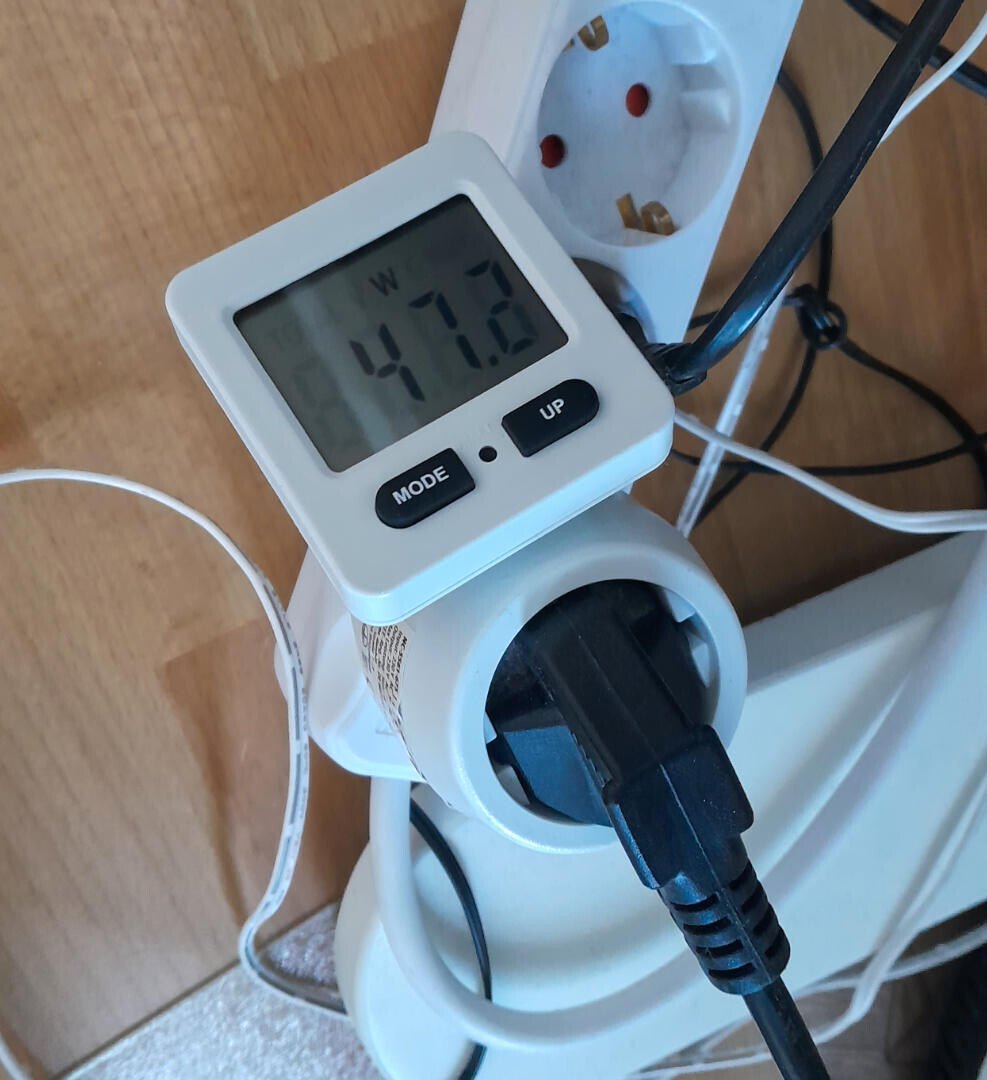
Obviously, the first thing you need to optimize your game's power consumption is a power meter. I just ordered the cheapest one I could find:Although it doesn't offer any fancy extra features, it provides enough to confirm or disprove basic assumptions. Look at the display and enable the option in your game that you think will improve battery life. Wait a few seconds for the consumption to drop and stabilize. Then, note the new consumption rate. Since power consumption fluctuates greatly, repeat this process a few times to get an average.
Since the measurements aren't very precise, this approach only works for optimizing large differences in power consumption. To measure the impact of smaller adjustments, you need a device that allows you to track and average consumption over several minutes

Setup Notes

Before you begin, ensure your laptop's battery is fully charged so you're not measuring its charging throughput. Close any other software and disconnect your laptop from the internet to ensure your measurements aren't affected by background tasks. Note that power consumption can vary depending on factors such as room temperature or the surface on which the laptop is placed, so results from different days or locations aren't necessarily comparable.

Dark Mode

We're used to seeing dark modes on apps and websites. However, they are a rare exception in games. This is unfortunate, and not just for aesthetic reasons. OLED screens use different amounts of power depending on how bright each pixel is. Therefore, if your game has a lot of user interface elements, offering a dark mode can extend your battery life. This test shows that switching from a white to a black screen can save up to 15 watts.
Therefore, if your game has many full-screen menus, offering a dark mode can significantly extend the battery life.

Frame Limits

If you take only one piece of advice from this article, let it be this: Add a configurable frame limit to your game. While it's possible to limit the frame rate using tools like the Nvidia control panel or AMD Software: Adrenalin Edition, most users don't have these tools installed or even know they exist. Even if they did, it's much more convenient to have these settings in the game.
It's just good practice, not to mention that it can reduce your game's power consumption. Many modern monitors support refresh rates of up to 240 Hz. While that makes for a smooth image in office applications, most games won't ever reach those frame rates.
If you run a game without a frame limit on a screen with such a high refresh rate, the GPU will try to reach that high number. This will cause it to heat up and produce an inconsistent frame rate. Even if an uncapped frame rate is higher on average than a capped one, it won't necessarily feel smoother because it's so inconsistent.

This is especially problematic when neither the CPU nor the GPU has much to do. In these situations, the GPU isn't held back by the CPU and can render far more frames than necessary. On laptops, you may notice that the fans get louder when the menu is open because menu screens are an example of this scenario: The game wastes a lot of energy rendering static menus at an insanely high frame rate when the actual in-game frame rate is much lower.
Ironically, an uncapped frame rate can even reduce the effective frame rate because the GPU can overheat, causing the driver to reduce the clock speed. 
Even on 60 Hz displays, a frame limit is a valuable option because many people are happy to run their games at 30 fps, especially if it increases their battery life. Depending on the game, even lower fps may be acceptable.

VSync

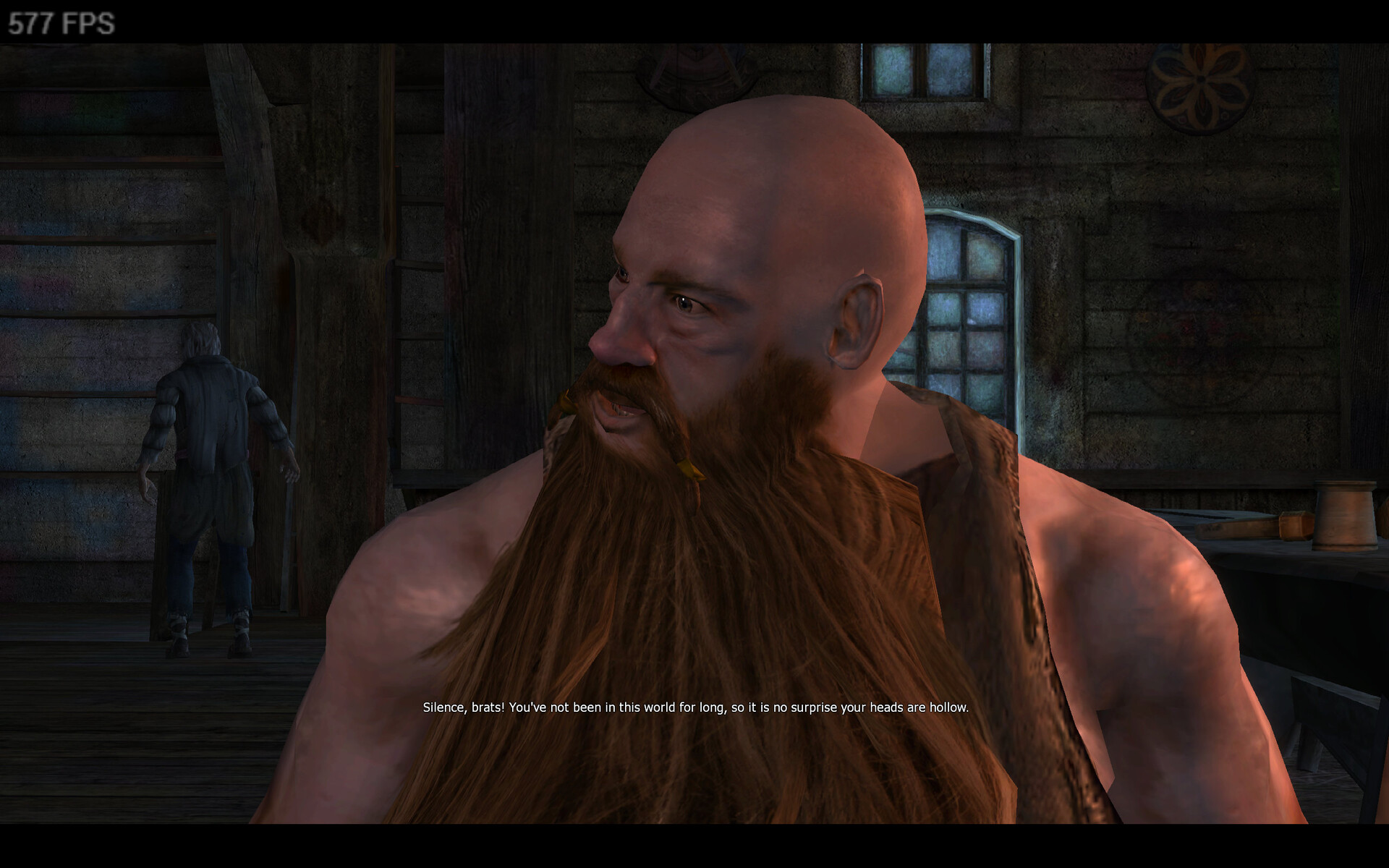
It's impossible to discuss frame rate limits without also talking about Vsync. It often serves as a basic frame rate limiter because it caps the frame rate at the screen's refresh rate. However, some games don't even meet this standard and don't offer players a Vsync option. The first Witcher game is guilty of that sin:

It probably wasn't that noticeable back then, but on a modern PC, it's easy to reach several hundred fps during gameplay. Consequently, this game's power consumption may be higher than that of recent games like Baldur's Gate 3.
It would be a mistake, though, to think of VSync as a frame rate replacement. Since it causes additional input lag, many players prefer not to use VSync in fast-paced action games. If your game relies on VSync to limit the frame rate, players may choose not to use it. The screenshot below shows Tabletop Simulator running at over 600 fps with VSync disabled:

(I know the Tabletop Simulator isn't a game where input lag matters much, but bear with me. It's just an example.)

Profiling Results

First, I lowered my laptop's refresh rate from 240 Hz to 60 Hz to test the basic assumption that fewer frames means less energy consumption. This reduced its power consumption from approximately 45 watts to approximately 40 watts when displaying the Windows desktop. Not bad, but how does it perform with actual games?
Baldur's Gate 3 used 149 watts with an unlimited frame rate and achieved ~150 fps. Limiting the fps to 60 reduced power consumption to 112 watts, and limiting it to 30 fps reduced it to 93 watts. That's an impressive 38% less than without the frame limit. However, further reducing the frame rate only yielded a slight decrease in power consumption, dropping to 86 watts.

Optimize your Game

This section is different from the others because, even though it's technically plausible, I don't actually recommend this approach. The idea is simple. The less work you give the CPU and GPU, the less power they use. Therefore, reducing the workload and eliminating unnecessary calculations makes the game use less energy. However, this approach is naive and ineffective. Most games are already highly optimized. Optimizing for power consumption means optimizing everything, rather than focusing on the game's bottlenecks as you would when optimizing for frame rate.
There probably isn't much potential left anyway because the game code is usually well optimized to begin with. Further optimizing the game would require a lot of effort and wouldn't be worth it.
However, there are exceptions to this rule. One of them is menus:

Optimize your Menu Screens

Menu screens are often overlooked when optimizing games. As mentioned above, the goal is to optimize bottlenecks and problematic situations, and menu screens are typically not an issue. The gameplay is paused, and no new assets need to be streamed in. If it's the main menu at the start of the game, then most things that could cause performance issues haven't been loaded yet. Therefore, menu screens are often not optimized very well. However, when optimizing the game's power consumption, menu screens offer significant potential savings with minimal effort. If you expect your players to spend a significant amount of time in the menus, it may be worth your time to optimize them.

Example Implementation in Unreal

The Lyra Starter Game project, provided by Epic for Unreal users, is a good test case for this. This is what the settings menu looks like in this game:

Technically, the game world is still visible, but it's so dark and blurry that it might as well not be. Let's replace the background blur widget with a tiling texture:

Visually, the result doesn't look very different, but the actual game world is no longer visible. However, the game isn't paused, and the game world is still rendered even though it's not visible. The game still uses as much energy as during gameplay: around 91 watts in my tests. This can be easily fixed by stopping the rendering as soon as the menu is opened using the Set Enable World Rendering node:

(Remember to call this node again when closing the menu to ensure the world is rendered again.)
Opening the same menu with world rendering disabled results in a 35% decrease in power consumption, from 93 to 59 watts. You could save even more energy by pausing the gameplay logic while in the menu.

If you really want to keep the transparent menus, you can take a screenshot when you open the menu and display that while the menu is open. If you don't want to pause the game or change the background, you can reduce the rendering resolution instead. Since the game is blurred anyway, even ridiculously low resolutions are fine:In this screenshot, the screen percentage is reduced to just 10%. In case you are not familiar with how screen percentage works in Unreal: It scales the internal resolution used to render the image. For example, if the output resolution is 2560x1440 and the screen percentage is 10%, then the internal resolution is 256x144 pixels. This means the number of pixels rendered drops by 99%!
Such a low resolution would be unacceptable in any other situation but is perfectly fine for a blurred menu background. It's not as efficient as disabling the rendering completely, but in my tests, the power consumption was just slightly >60 watts.


One might argue that most players don't spend much time in the settings menu, so this change has an insignificant impact. While this may be true for the settings menu alone, the impact adds up when applied to other full-screen menus. In multiplayer shooters, a significant portion of every game session is spent in the main menu, server browser, map selection, loadout customization, lobby, and so on. In other genres, such as RPGs, simulations, and strategy games, large portions of the gameplay often occur in separate menus that hide the game world completely, making this an even more effective optimization.

Add more Scalability Settings

Similar to the frame limit, this tip is a no-brainer. Scalability settings allow users to decide how much battery life they are willing to sacrifice for better graphics. It's important for more than just that, though. Many developers forget how many old PCs and laptops are still in use. So, even if you have low, medium, and high settings, take a step back and think about how much time it would take to implement a very low setting. Not that much, right? Don't worry if things look ugly; it's better than not being able to play the game at all. If the game looks too bad on the lowest settings, people can choose not to play it with those settings. Without them, however, they might not have that choice.
When it comes to power consumption, pay special attention to the upsampling options. On small handhelds like the Steam Deck, for example, the effective resolution can be quite low yet still acceptable.

Profiling Results

In Baldur's Gate 3, using DLSS Performance instead of Quality reduced power consumption from 112 to 101 watts. To ensure that the performance savings actually saved energy and didn't just increase the fps, I limited the frame rate to 60 fps when testing this.

Save Energy when no one is watching

Obviously, the worst way to use your battery charge is to render a game that isn't currently being played. Perhaps the player put their laptop down to get coffee, use the restroom, talk to their seat neighbor, check their phone, or fell asleep. Still, the game is running, completely unfazed. The solution is surprisingly simple: Measure the time since the last player input and enable energy-saving options once a threshold is reached. This doesn't have to be as invasive as turning off the screen, like on mobile phones. You could just reduce the resolution or the maximum frame rate. If you're interested in this approach, this white paper from Epic about Fortnite's power-saving options is a good starting point and also goes into some Unreal-specific implementation details.

In Fortnite, the resolution only changes in front-end screens, such as the lobby. However, nothing is stopping you from doing this during gameplay. That being said, this works better for some games than for others. In a simulation game like The Sims, for example, if the player isn't touching the controls, it could mean that they're observing the simulation to see how it unfolds. In games with lengthy cut scenes, you may want to pause this feature whenever a cut scene starts. In a shooter or racing game, though, you can safely assume that the player isn't playing after just a few seconds of inactivity.
The whitepaper also covers focus detection. When running on Windows, focus detection allows you to enable energy-saving settings when the game window is in the background. While we all want our game to be the sole focus, many players have their browser open while gaming to look at walkthroughs, check mails, and do other things. For these players, this optimization can make a real difference.

Detect whether you're running on Battery

One of the most obvious steps you can take to reduce your game's impact on battery life is to determine whether your game is running on a battery-powered device. This allows you to automatically adjust settings when the device is unplugged.

Unreal

In Unreal, you can use the IsRunningOnBattery() function. This function is implemented for each platform. For Windows it looks like this:

The function only returns a bool, to be consistent with the corresponding functions for other platforms, but internally, it also has information about the currently available capacity, so you could implement your own function that returns that instead.
Pro tip: When playing a game, it's easy to overlook Windows' low battery warnings. Perhaps your game could take over the responsibility of warning the user when the battery is about to run out.

Unity

In Unity, you can get the current battery status from the System Info.

Closing Thoughts

I'm not sure how each of the mentioned techniques applies to your game, but I'm confident that using them will improve its energy efficiency.
Although this article focuses on improving battery life, I want to emphasize that creating energy-efficient games has many benefits beyond battery life.
Even if you expect all your players to use PCs or consoles connected to the grid, overheating GPUs and loud fans didn't exist, and all players got their power from renewable energy, improving energy efficiency would still be worthwhile.
When you develop a game, you create something that potentially thousands of people will play. Therefore, every time you change something in your game to consume less energy, the cumulative effect across thousands of devices adds up. While I'm aware that video games' contribution to climate change is minimal, I hope you take pride in ensuring that they don't contribute more than necessary.


If you enjoyed this article or found it useful, please share it with others! If you have any comments, questions, or feedback, please post them below. To get informed about new articles, follow me on Artstation, on Mastodon or Bluesky.

You can also find this article on my WordPress blog.

Tutorial: Laplacian Texture Blending in InstaMAT

Tutorial / 22 March 2025

As mentioned in my last article, a tutorial on how to implement Laplacian texture blending in Substance Designer, I’m not exactly happy with Adobe’s licensing options, or recent changes to their terms of service. So I looked for alternatives, and quickly found InstaMAT, another node-based texture creation software. InstaMAT is free for individuals or companies with a revenue smaller than 100.000€/year, and there are perpetual licenses available, which I always prefer to subscriptions. To test it and see how well it works for me, I opted to implement Laplacian texture blending in this software as well. This is how this article came to be.

If you own InstaMAT, this tutorial is hopefully helpful to you as it shows you how to implement Laplacian texture blending, a helpful technique when creating composited materials. If you don’t, it’s hopefully an interesting look outside the box that is Substance Designer.

What is Laplacian Texture Blending

One of the most common operations when authoring materials is blending together different textures using a mask. It's a great way to create new textures by combining existing ones, or to have more options for adding variation during rendering.

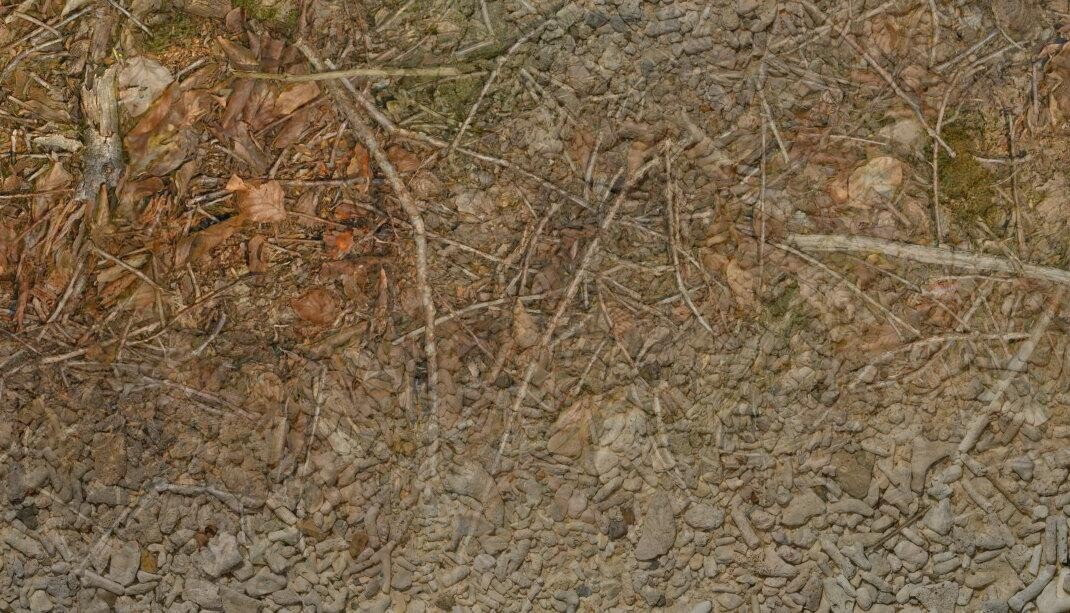
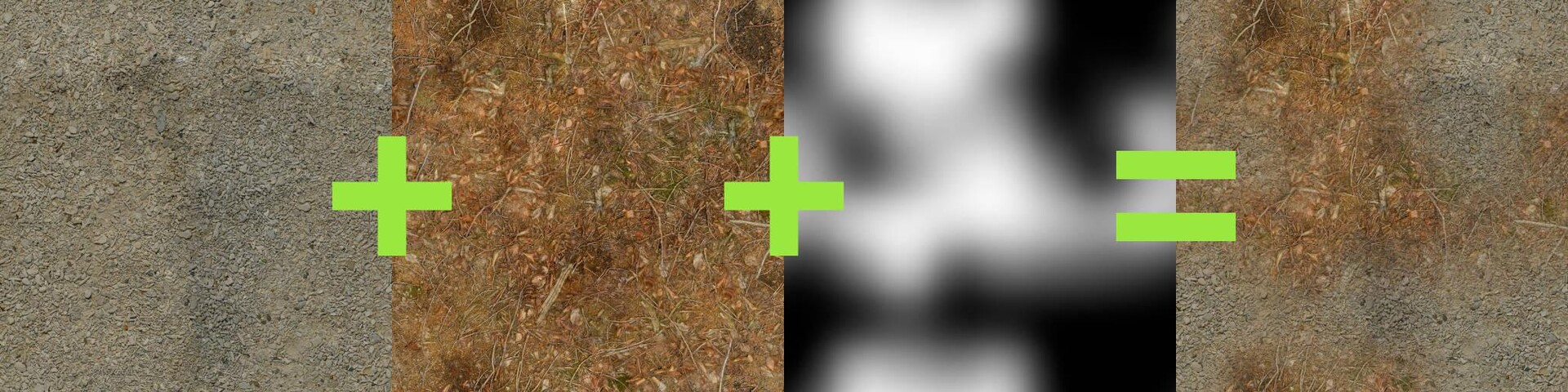
But very often when you use a soft mask, this is what you get:

Both textures, the forest ground texture and the pebbles texture, are simply layered on top of each other, and details such as sticks and pebbles are noticeably transparent. Also, in the areas where the textures are displayed with reduced opacity, the effective contrast of the resulting texture is noticeably lower than in the areas where only one texture is displayed.

There are several ways to fix/improve this situation:

  • Using height-blending, you can create a mask that is affected by the heights of the details. This allows you to use a higher mask contrast without creating a noticeable edge.

  • You can increase the contrast of the result in the blended regions based on the opacity of the source textures to maintain an even contrast throughout the texture.

Neither solution is perfect. Increasing the contrast in the blended areas doesn't fix ghosting. And height blending is only an option when height maps are available, which isn't always the case. And even then, its usefulness depends on fine-grained, noisy height maps, and on all contrasty details actually being present in the height map. So if a material has a lot of details in the base color that aren't present in the height map, height blending won't help preserve them during blending.

Another approach to this problem was recently proposed by Bart Wronski, research scientist at Nvidia. It got published here in the Journal of Computer Graphics Techniques. I highly recommend reading it because it has two very strong qualities: It's a) very clever and b) relatively simple once you understand how it works. The technique is called Laplacian texture blending, because it uses a Laplacian Pyramid. I won't describe the technique in detail (that's what the paper is for), but the basic idea is that instead of blending the two textures with one mask, the textures are split into several frequency bands. These frequency bands are then blended together using separate masks. The high frequency bands are blended with a high frequency mask, while the low frequency bands are blended with low frequency (read: blurred) versions of the mask. This way, the contrast of the small details in the textures is preserved, while the low-frequency elements, such as the dominant colors, are blended very softly.

Let's see what the result looks like:


Compared to the classic blend, ghosting is dramatically reduced. Details remain intact and distinct, and local contrast remains consistent throughout the texture.

A few notes first:

  • This tutorial explains how to implement the technique with a fixed number of mip levels. If you're actually going to use this in production, I would recommend letting the user control the number of levels so they can control how soft they want the blend to be.

  • Since the tutorial only covers how to implement the technique in InstaMAT, I highly recommend reading Wronski's paper to understand how the technique works before starting the tutorial, as I won't go into the details.

Step 1 - How to separate Frequency Bands

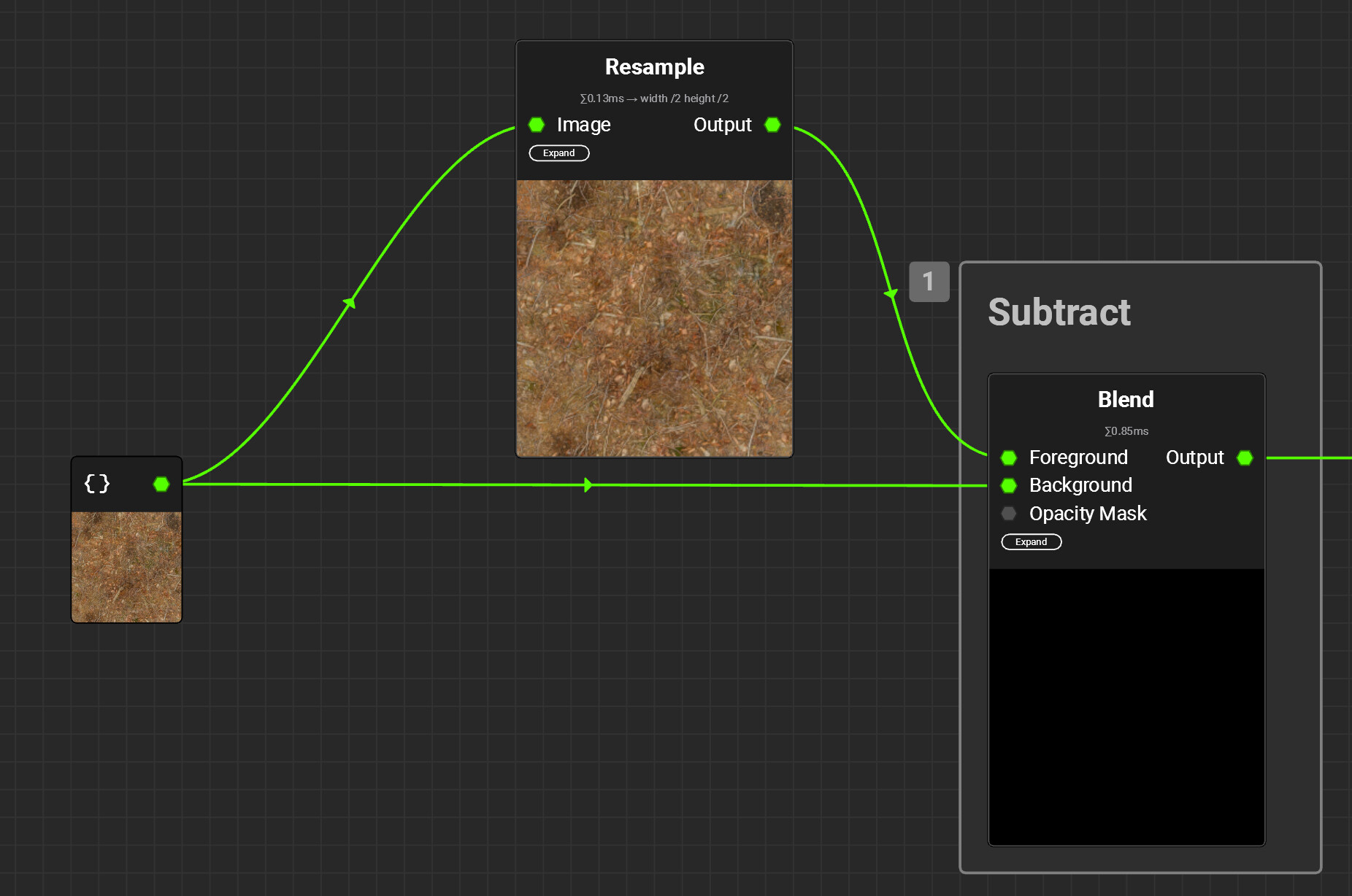
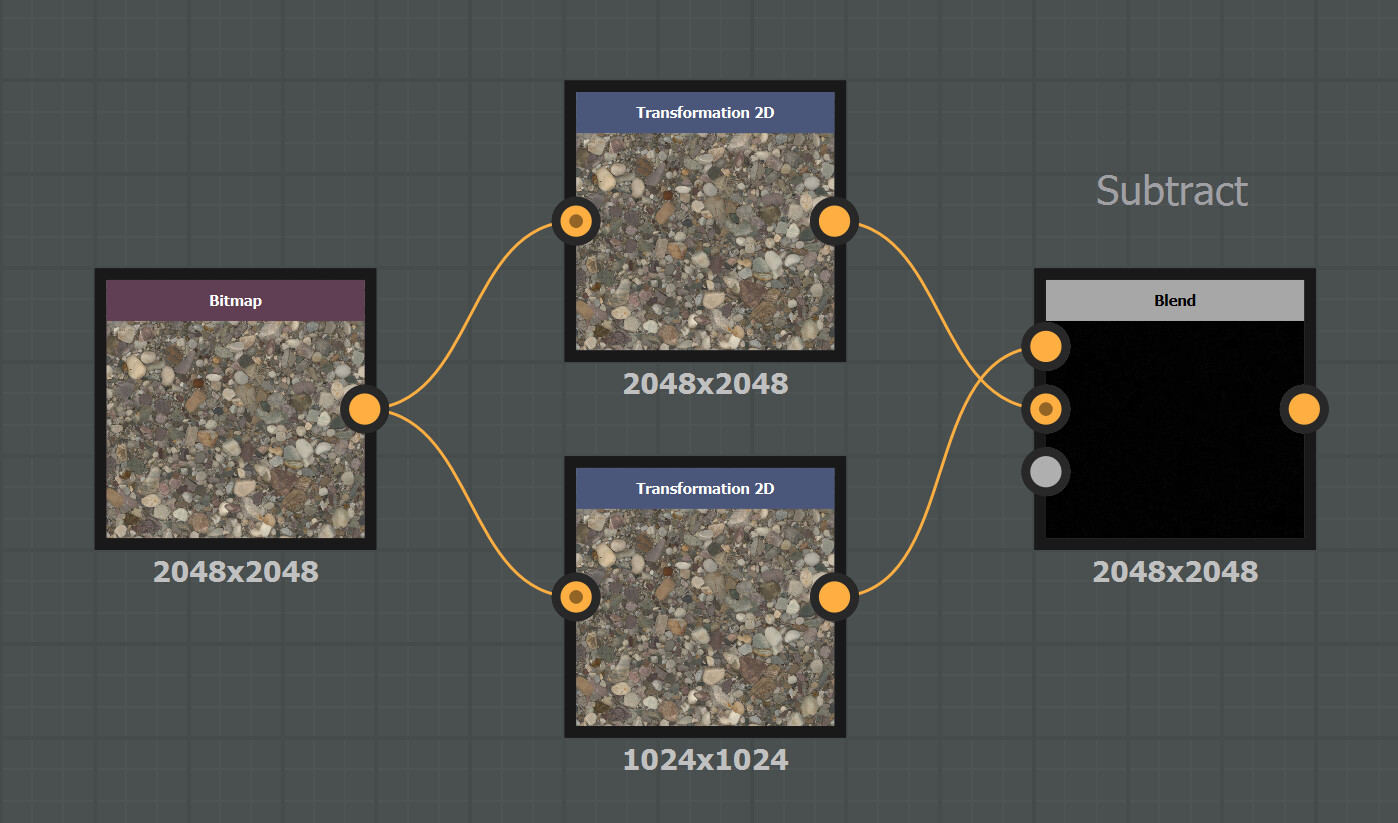
The first step is to separate the frequency bands present in the mip maps of the input textures. Due to the smaller resolution, each mip map in the chain loses the highest frequencies, as there are not enough pixels anymore to display them. Therefore, you can isolate these frequencies by subtracting the smaller mipmap from the bigger one:

As you can see in the screenshot, the result is quite dark, as the differences between the two mips are really small. Even worse, the differences can be both positive and negative. This makes it slightly more complicated to work with them, since they aren’t visible by just looking at the node’s output. By default, InstaMAT even clamps the output values between the 0-1 range, because when it comes to images, we usually don’t want values outside of this range. Thankfully, the clamping can be disabled in the node’s settings:


Note that I also disabled the sRGB setting. This setting is really important, as adding and subtracting details doesn’t work in a gamma-corrected color space. So for the rest of the tutorial,make sure to disable sRGB on all used nodes.

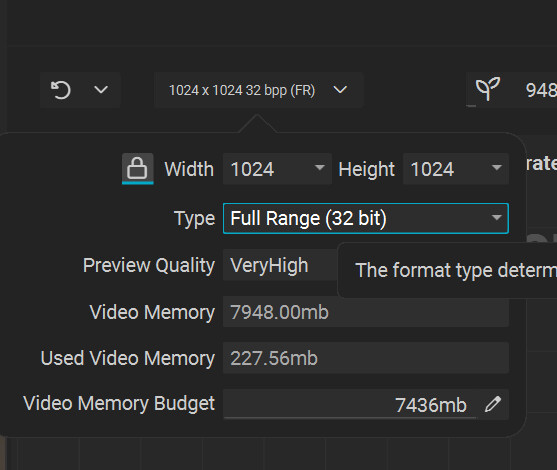
Additionally, you also need to change the format type of the project from the default, Normalized, to Full Range, otherwise the clamping being disabled on individual nodes doesn’t do anything:

Step 2 - Getting all the Levels

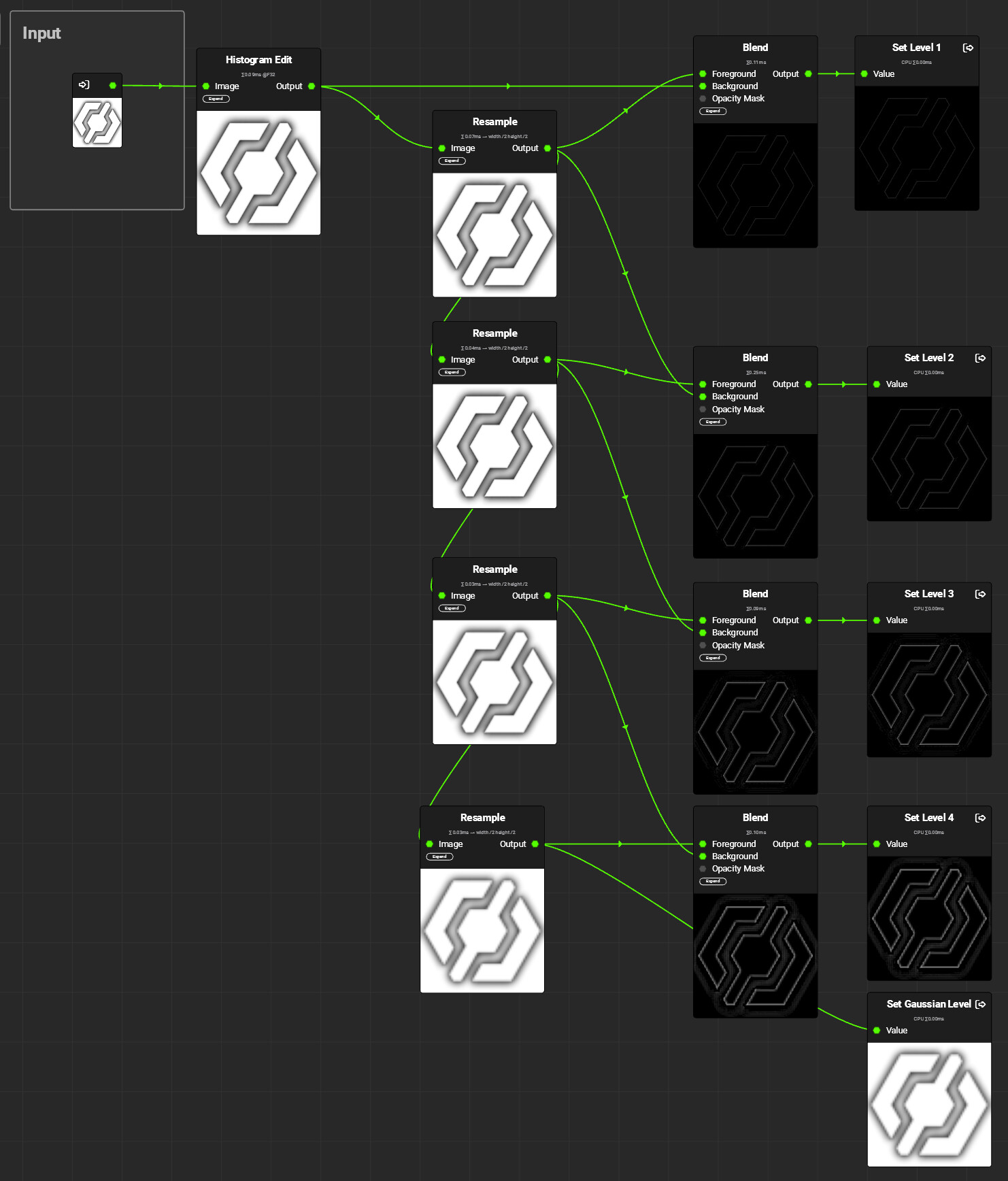
Once the basic setup to get the frequencies of individual mipmaps works, it's time for some copy and paste:

In this graph, the previously used Image node is now replaced by an Input parameter. Each frequency band is connected to a separate Output node. Note that I’ve named them Levels 1-4. Both terms, frequency bands and levels are correct, as the frequency bands are the levels of the Laplacian pyramid. Finally, the smallest mipmap, called the Gaussian Level, is output without any modifications. It contains all the lower frequencies not present in the diffs above. It's up to you how many levels you want to use, depending on how smooth you want the transition to be. Each step makes the blend softer. As the number of needed levels depends heavily on the dominant frequencies of both the textures and the mask, I recommend exposing the number of levels as a parameter to the user.

Step 3 - Blending the Frequencies separately

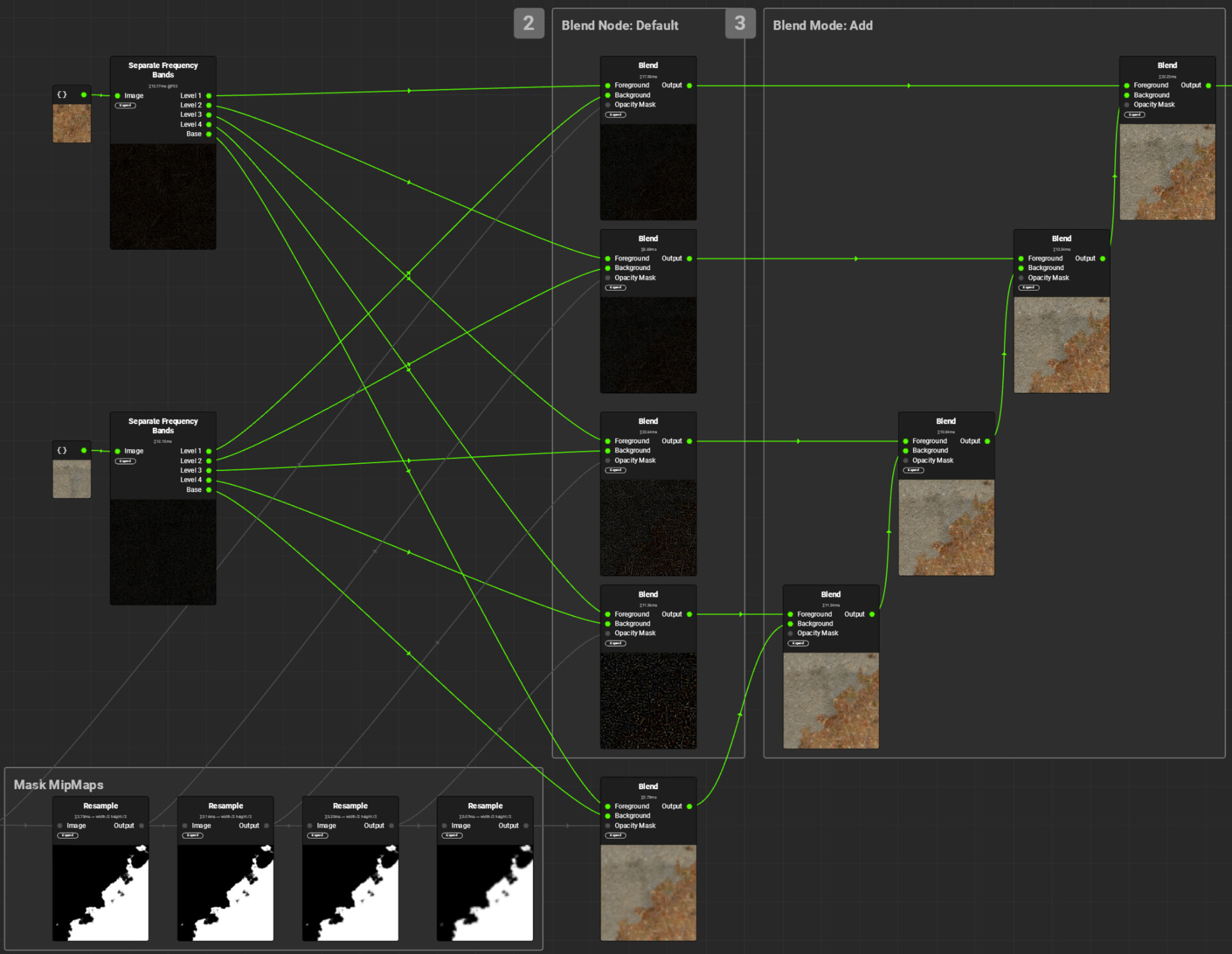
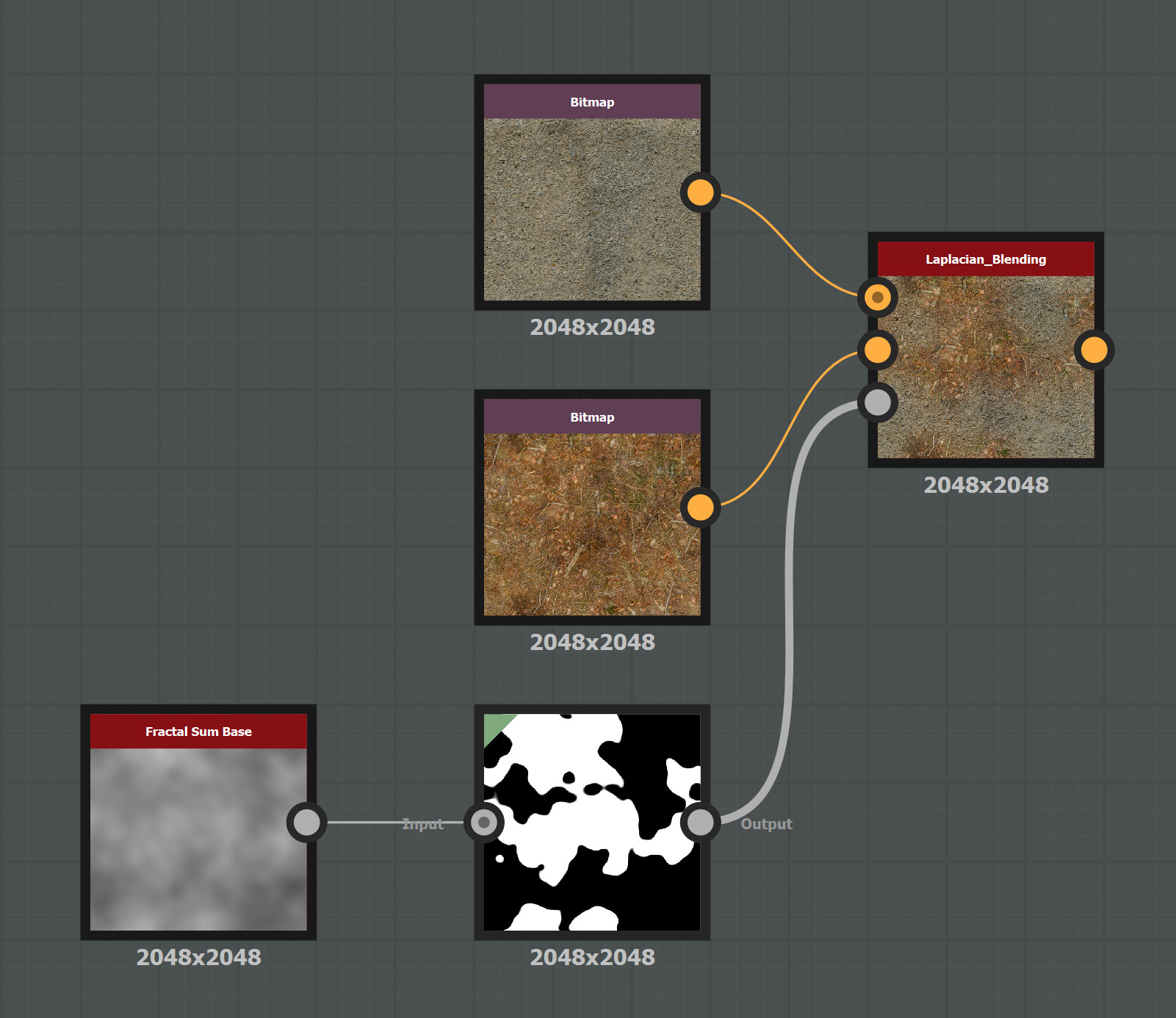
Now that you have separated the frequency bands, blend them separately. Start with the Gaussian Levels and blend them using the appropriately mip-mapped mask. The frequency bands are blended in the same way. For each blend, the appropriate mask mip map has to be used. The one with the highest frequencies uses the full resolution mask, the next uses the half resolution mask, and so on.Then all the blended frequency bands are added to the blended Gaussian Levels.And that's it, you're done. Just replace the images and mask with Input parameters and you can use the finished graph just like a classic blend mode:

A word of advice for when you try out this technique: Since the mask is only blurred, not sharpened, the contrast of the original mask will dictate the highest possible contrast in the blended result. I'd recommend using masks that are either completely binary or close to it.

Performance

Since creating textures in InstaMAT doesn't need to be done in real time, performance wasn't a high priority for this implementation. I didn't look into performance improvements like skipping layers, and outputting the individual frequency bands at full resolution is obviously an oversight that should probably be fixed. If you're using this implementation multiple times in an already complex material, you might want to do that, but I was already quite happy with the graph as shown above.

About InstaMAT

When it comes to procedural texture creation, Substance Designer is undoubtedly the industry standard. So if you are wondering whether to use Substance Designer or InstaMAT, the deciding factors are probably not technical. InstaMAT offers pretty much all the nodes and features you'd expect, and was clearly developed in a world where Substance Designer already exists. The UI is quite similar and feels very familiar if you're used to Substance Designer, so you won't have much of a learning curve. I was up and running in a matter of minutes. There were a few situations where I had trouble overcoming some muscle memory I had acquired over the years (double-clicking a node in InstaMAT would open its graph, whereas in Substance Designer it would only update the preview), but in general it was a very smooth experience. That said, I can't really say anything about more advanced features that might be critical in a professional environment, such as version control integration or tooling and automation options.The biggest advantage of Substance Designer is the myriad of existing users who share their creations, plug-ins and techniques, write or record tutorials and help each other with bugs and problems. 

So would I recommend InstaMAT over Substance Designer? If you're eligible for the free version and don't have the biggest budget, I can easily recommend it. If you're not and need the tool in a professional environment, Substance Designer is probably the safer option. Still, I'd recommend giving it a try. Experienced texture artists won't have trouble getting used to it, and if you want to be less dependent on Adobe, InstaMAT is a viable alternative.


If you enjoyed this article or found it useful, please share it with others! If you have any comments, questions, or feedback, please post them below. To get informed about new articles, follow me on Artstation, on Mastodon or Bluesky.
You can also find this article on my WordPress blog.

Laplacian Texture Blending in Substance Designer

General / 09 March 2025

One of the most common operations when authoring materials is blending together different textures using a mask. It's a great way to create new textures by combining existing ones, or to have more options for adding variation during rendering.

But very often when you use a soft mask, this is what you get:

Both textures, the forest ground texture and the pebbles texture, are simply layered on top of each other, and details such as sticks and pebbles are noticeably transparent. Also, in the areas where the textures are displayed with reduced opacity, the effective contrast of the resulting texture is noticeably lower than in the areas where only one texture is displayed.

There are several ways to fix/improve this situation:

  • Using height-blending, you can create a mask that is affected by the heights of the details. This allows you to use a higher mask contrast without creating a noticeable edge.
  • You can increase the contrast of the result in the blended regions based on the opacity of the source textures to maintain an even contrast throughout the texture.

Neither solution is perfect. Increasing the contrast in the blended areas doesn't fix ghosting. And height blending is only an option when height maps are available, which isn't always the case. And even then, its usefulness depends on fine-grained, noisy height maps, and on all contrasty details actually being present in the height map. So if a material has a lot of details in the base color that aren't present in the height map, height blending won't help preserve them during blending.

Another approach to this problem was recently proposed by Bart Wronski, research scientist at Nvidia. It got published here in the Journal of Computer Graphics Techniques.
I highly recommend reading it because it has two very strong qualities: It's a) very clever and b) relatively simple once you understand how it works.
The technique is called Laplacian texture blending, because it uses a Laplacian pyramid.
I won't describe the technique in detail (that's what the paper is for), but the basic idea is that instead of blending the two textures with one mask, the textures are split into several frequency bands. These frequency bands are then blended together using separate masks. The high frequency bands are blended with a high frequency mask, while the low frequency bands are blended with low frequency (read: blurred) versions of the mask. This way, the contrast of the small details in the textures is preserved, while the low-frequency elements, such as the dominant colors, are blended very softly.

Let's see what the result looks like:

Compared to the classic blend, ghosting is dramatically reduced. Details remain intact and distinct, and local contrast remains consistent throughout the texture.
When I read the paper, I immediately wanted to try and implement the technique myself, and that's how this blog post came about.
It's basically a documentation of my implementation of this technique in Substance Designer, but written as a tutorial so that you can easily implement it yourself and hopefully avoid some of the problems I encountered.

A few notes first:

  • I'm using Substance Designer 5 for this tutorial. That's because I'm old and grumpy and still remember the days when Allegorithmic was not owned by Adobe and offered perpetual licenses for their products instead of forcing you to subscribe to them. The tutorial is still valid for newer versions, but in one or two places, newer versions may offer more elegant solutions to some problems.
  • This tutorial explains how to implement the technique with a fixed number of mip levels. If you're actually going to use this in production, I would recommend letting the user control the number of levels so they can control how soft they want the blend to be.
  • Since the tutorial only covers how to implement the technique in Substance Designer, I highly recommend reading Wronski's paper to understand how the technique works before starting the tutorial, as I won't go into the details.

Step 1 - Separating the Frequency Bands

The first step is to separate the frequency bands present in the mip maps of the input textures. Due to the smaller resolution, each mip map in the chain loses the highest frequencies, as there are not enough pixels anymore to display them. Therefore, you can isolate these frequencies by subtracting the smaller mip map from the bigger one:

There's a problem with this, though: Since the differences between the mip maps can be both positive and negative, the Subtract node removes about half of them because the output is clamped to the 0-1 range.

Note: Newer versions of Substance Designer apparently offer the option to have nodes that work in an HDR range outside of 0-1. I haven't been able to verify this, but it's something to consider, as it will make your life easier.

To avoid going outside the 0-1 range, you need to offset the values in the two inputs so that the output isn't centered around 0.0, but around 0.5, similar to how normals are stored in normal maps. To avoid losing any information due to the offset, the range of the input texture has to be reduced as well. This is what the resulting graph looks like:

The OffsetColor Node

The OffsetColor node in the screenshot above is a custom node because Substance Designer doesn't provide one by default. It simply combines three Histogram Shift nodes:

Their Position parameters are all mapped to the same shared Input Parameter.
Once this setup works, it's time for some copy and paste:

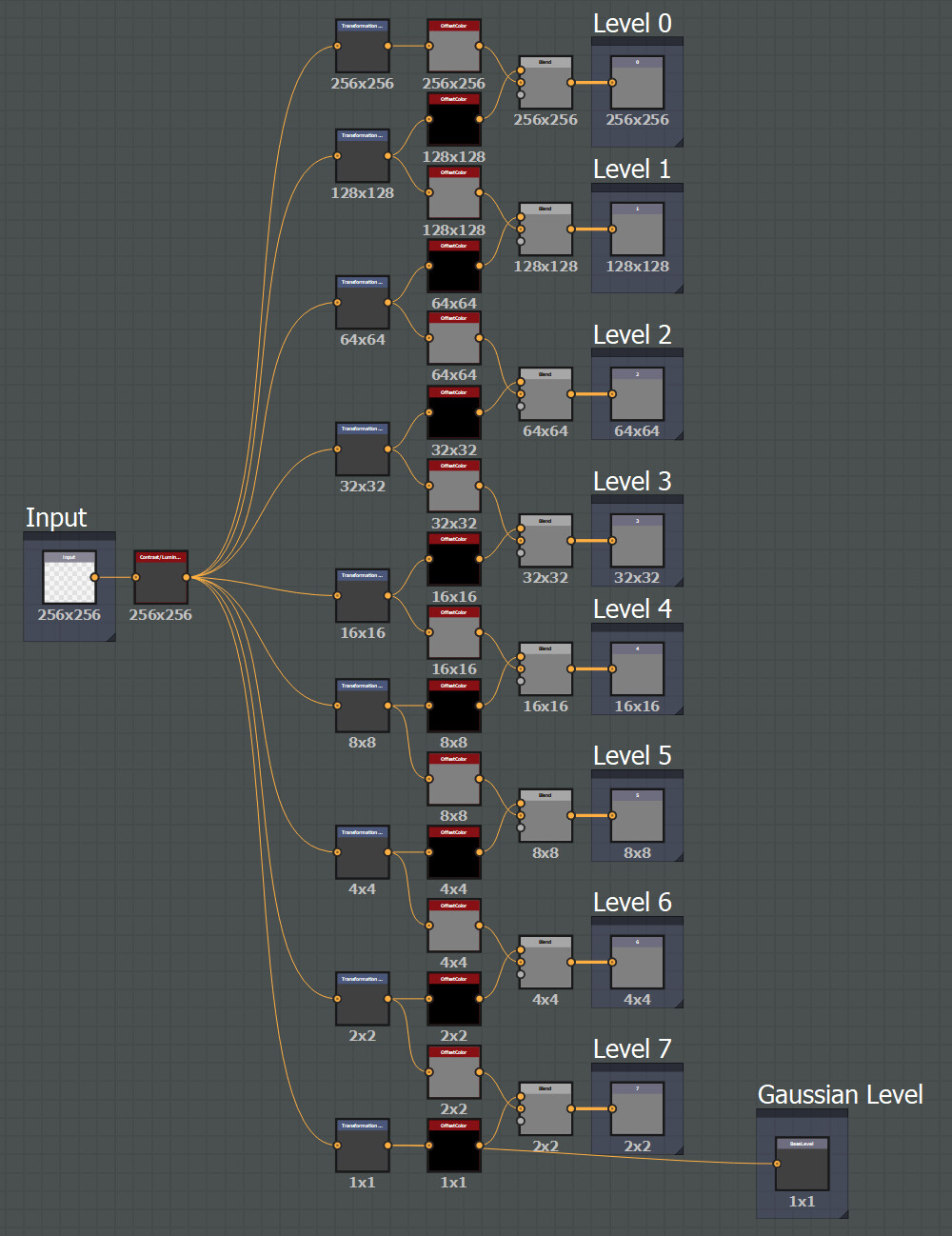
In this graph, the previously used Bitmap node is now replaced by an Input Color node. Each frequency band is connected to a separate Output node. Note that I’m referring to them as Levels in the comments, because that’s the name used in the paper, but in the context of the tutorial, I prefer the more descriptive term frequency band.
Finally, the smallest mip map, called the Gaussian Level here, is output without any modifications. It contains all the lower frequencies not present in the diffs above.
It's up to you how many levels you want to use, depending on how smooth you want the transition to be. Each step makes the blend softer. The paper uses 4 levels as an example, but for my test scenario, 4 was not soft enough. As the number of needed levels depends heavily on the dominant frequencies of both the textures and the mask, I recommend to expose the number of levels as a parameter. Ideally, it could even be a float parameter that mixes the results of the versions with the number of levels rounded up and down.

Step 2 - Blending the Frequencies separately

Now that you have separated the frequency bands, blend them separately. Start with the Gaussian Levels and blend them using the appropriately mip-mapped mask. The frequency bands are blended in the same way. For each blend, the appropriate mask mip map has to be used. The one with the highest frequencies uses the full resolution mask, the next uses the half resolution mask, and so on.
Then all the blended frequency bands are added to the blended Gaussian Levels. Luckily, Substance Designer offers an AddSub blend mode that subtracts (0.5 - foreground value) for foreground values below 0.5 and adds (foreground value - 0.5) for foreground values above 0.5, so there's no need to do any additional math to get rid of the offset added earlier. 
Notice in the screenshot how each AddSub blend node increases the resolution. Since the background input is the one used as the reference when the node's size setting is set to Relative to Input, each blend node needs a +1 offset to the input resolution, otherwise the size of the Gauss levels would be propagated to the top.

And that's it, you're done. The finished graph can now be used just like a classic blend mode:

A word of advice before testing: Since the mask is only blurred, not sharpened, the contrast of the original mask will dictate the highest possible contrast in the blended result. I'd recommend using masks that are either completely binary or close to it.

Performance

Since creating textures in Substance Designer doesn't need to be done in real time, performance wasn't a high priority for this implementation. I didn't look into performance improvements like skipping layers, and 7 layers would probably be a bit heavy if used in a real-time context. If you're using this implementation multiple times in an already complex material, you might want to check the computation time anyway, and I'm sure I've left some optimization potential on the table.


If you enjoyed this article or found it useful, please share it with others! If you have any comments, questions, or feedback, please post them below. To get informed about new articles, follow me on Artstation, on Mastodon or Bluesky.

You can also find this article on my WordPress blog.

Tutorial: Non-Invasive Engine Changes in Unreal

Tutorial / 23 February 2025

One of the upsides of working with Unreal is that you’ve the option to look at the source code and change it if necessary. But once you start working on bigger projects, this actually something that you learn to avoid, as it does bring some downsides:

  1. If your project takes longer than just a few months, you’ll probably want to update your engine version a few times, to take advantage of newly released features or to get fixes to existing bugs. But with every change you make to the original source code, updating to a newer version becomes more complicated because you have to merge your own changes with the changes made by Epic’s developers. Even trivial changes can make the update process significantly more cumbersome once they start to pile up. 

  2. Once the project is finished, you can't take your changes with you to the next project without combing through the engine's source code and copying over each change. This can be especially challenging if your changes consist of a number of changes in different classes that are interdependent, so you have to track them down one by one.

  3. If you're working on multiple projects in parallel, each using its own version of the engine, you can't share these changes, so you have to make and maintain them for each project individually.

Thankfully, in many cases, these problems can be fixed using an Unreal feature called Core Redirects.
They allow you to redirect references to functions, classes, structs or properties to other ones at load time, without the need to re-compile your code when you choose to disable them again. So instead of changing a class, you create a child class of it. In this class, you can override functions of the original one, add variables or change the default values of variables, etc. Note that the tutorial below only covers class redirects, and have a look at the documentation below which other types exist and what they can be used for.
While core redirects are already a powerful feature, they get even better when you put them in a plugin, so that you can toggle them with the click of a button!

Below are all the steps required to create a toggleable core redirect that adds an additional asset registry tag to material instances. This tag tells the user how many textures are used by a material instance, making it easier to identify instances that are going overboard.

Step 1 - Creating the Plugin

First, create the plugin that will store your modified classes and the core redirects. This is very simple, just open the plugins window (Edit -> Plugins), click on the Add button and select the Blank template. Give your plugin a fitting name and description. After creating the plugin, Unreal will prompt you to restart the editor, then you’re done.

Step 2 - Creating the Child Class

Now create a new class, right-click anywhere in the Content Browser in a folder containing C++ classes and select the option New C++ Class….


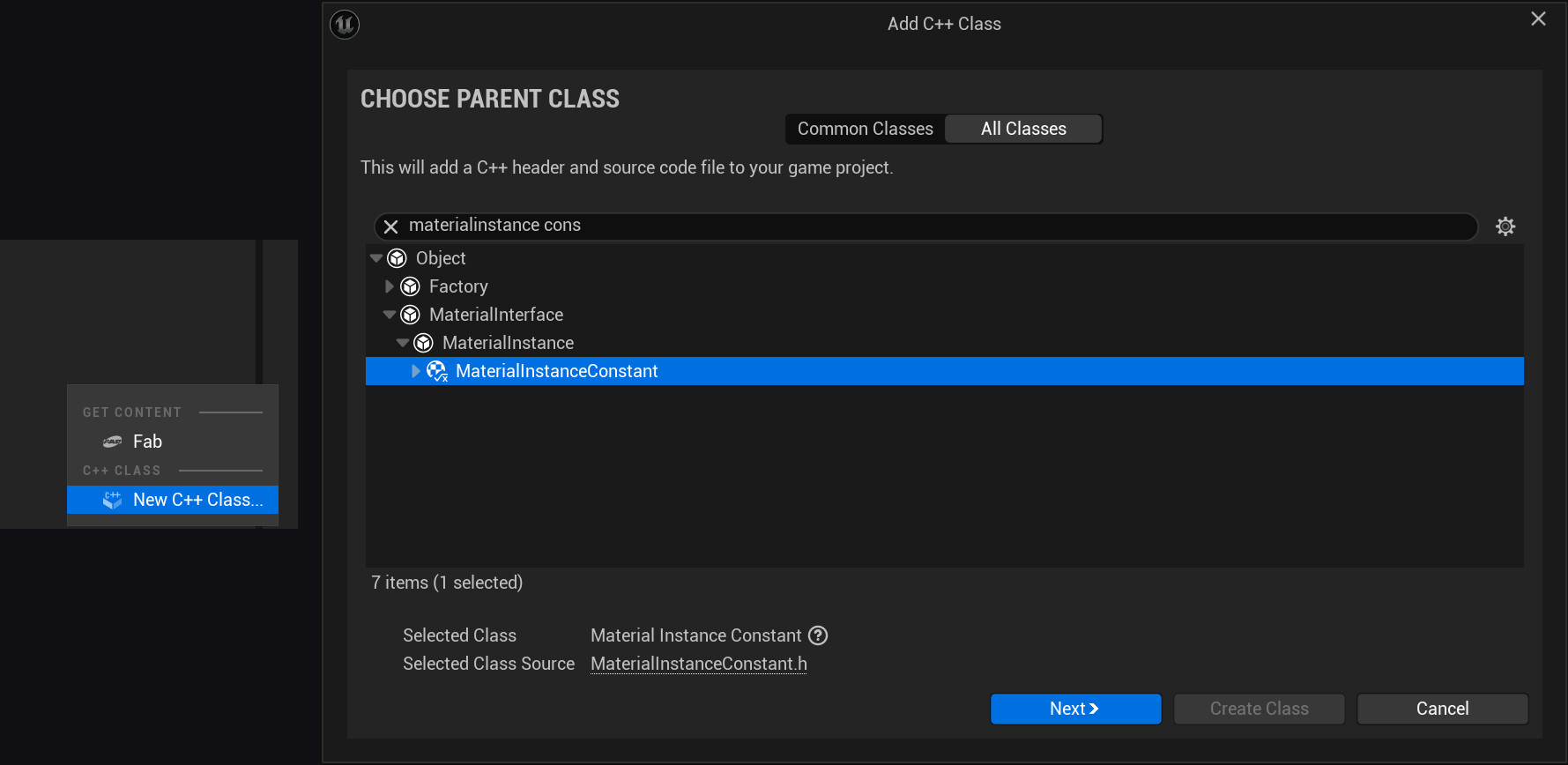
In the Add C++ Class wizard, select the parent class, in this case material instance constant, and select the folder of the newly created plugin as the location of the new class. Also make sure that the new class is public, and choose a fitting name. For this example, I didn't want to be overly inventive and used the default name MyMaterialInstanceConstant. Close the editor and open your new class in Visual Studio.

Step 3 - Adding the Asset Registry Tag

To add additional asset registry tags, first you need to indicate that you want to override the existing GetAssetRegistryTags() function. You can do this in the header of your new class, using the override keyword:

In the source file, add the actual implementation:
Since Unreal already provides the GetTextures() function, it’s very simple in this case. Important: The function still calls the implementation of its parent (Super::GetAssetRegistryTags). This call makes sure that aside from the logic added in the child class, material instances still behave the same as before.

Step 4 - Adding the Core Redirect

Now that the new class and the override function are in place, you still need to tell Unreal to use it as a replacement for the original one. To do that, navigate into the folder of your new plugin. It’s located in your project folder, in Plugins/[NameOfYourPlugin]. In my example, it’s Plugins/AdditionalAssetTags.
In that folder, create a Config folder, and place a config file in it. This config needs to be named Base[NameOfYourPlugin].ini. In this file, add these two lines, replacing MyMaterialInstanceConstant and AdditionalAssetTags with the names of your class and plugin:

[CoreRedirects]
+ClassRedirects=(OldName="MaterialInstanceConstant",NewName="/Script/AdditionalAssetTags.MyMaterialInstanceConstant")

These lines will redirect any reference to the MaterialInstanceConstant class to your newly created child class.

Step 5 - Adjusting the Loading Phase

Since the redirector changes Unreal’s behavior when loading assets, it needs to be loaded before the affected assets are loaded, otherwise redirecting the references will fail. To do this, open the .uplugin file of the created plugin (Plugins/AdditionalAssetTags/AdditionalAssetTags.uplugin), and change the LoadingPhase setting. The LoadingPhase enum controls when a plugin is loaded. For plugins containing redirectors, it needs to be set to EarliestPossible:

Step 6 - Testing the Result

Open the editor and check the tooltip of some of your material instances:

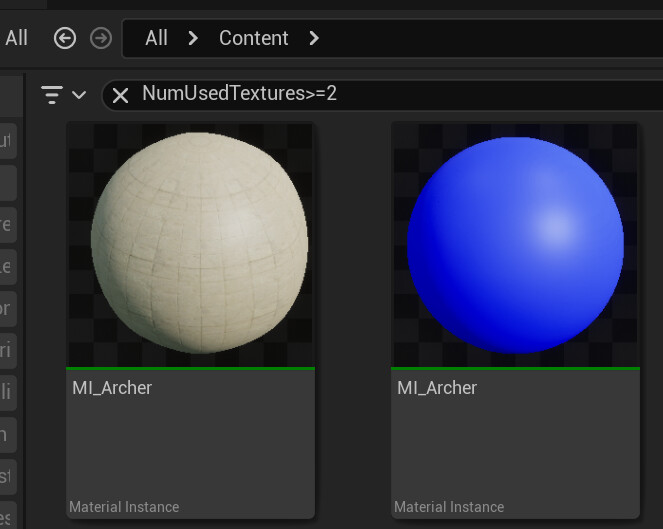
You can also use the search bar to use for specific tag values:

And, interesting in this case, you can even sort by tag:

Note: The asset registry tags are only created when assets are loaded. So for the search to give you complete results, you need to select all existing material instances in the project at least once. The tags then get saved for later, so you only have this to do whenever you create or change tags.

Step 7 - Disabling the redirect

Your engine change now works as expected, so the tutorial could end here. But of course there's a chance you might want to disable it again for some reason, and since the promise of this tutorial was to make the engine change non-invasive and easy to revert, let's see how that works.
At this point, simply disabling the plugin will cause problems if any assets that had their class changed as a result of the redirection have been saved in the meantime. That's because they were saved as the new class, and when the plugin is disabled, that class no longer exists. Fortunately, you already know the solution to this: 
Another core redirect.

In the plugin's config file, comment out the previous core redirect (you want to keep it around to enable it if needed) and add a new one pointing in the other direction:

[CoreRedirects]

+ClassRedirects=(OldName="/Script/AdditionalAssetTags.MyMaterialInstanceConstant",NewName="/Script/Engine.MyMaterialInstanceConstant")

Now launch the Editor, locate any assets that use your custom class, and resave them. The resaved assets will now use the default class again.
Now you can safely disable the plugin again. Your engine change is gone without a trace.

Disclaimers

While core redirects are a handy tool in many situations, they do have some limitations.

  1. Redirects are evaluated when loading assets, but not when creating new assets. In the material instances example, the number of textures is displayed correctly for existing instances, but not for instances created later. To fix that, you can either restart the editor or reload the assets (Asset Actions -> Reload).

  2. If you use a lot of redirectors, you may end up with multiple redirectors for the same class. In this case only one of them is used. So use them sparingly and check the existing core redirects in BaseEngine.ini to avoid conflicts.


If you enjoyed this article or found it useful, please share it with others! If you have any comments, questions, or feedback, please post them below. To get informed about new articles, follow me on Artstation, on Mastodon or Bluesky.

You can also find this article on my WordPress blog.

File Size doesn't matter (unless it does)

Article / 25 October 2024

When discussing optimization goals for games, the two key goals are usually higher fps and staying within the memory budget. These goals then inform subsequent decisions about what rendering features to use, how many assets to place in levels, etc.
One metric that isn't usually considered a priority is the size of the game on the player's hard drive. And that makes sense: hard drives are getting bigger, most people have reasonably fast Internet connections these days, and once the game is running, the size of the game files usually doesn't have a noticeable impact on the gameplay experience. Especially for smaller indie developers, reducing the size of their game isn't worth the effort. But as always, there are exceptions to the rule, and depending on the game you're developing and the audience you're targeting, keeping the size in check can be a good idea. This article is meant as a reminder to check if your game could benefit from shrinking.
Disclaimer: I'm mixing several things here. While related, the size of a game installed on a hard drive can differ from the download size, because the game is often compressed for the download, or the game creates additional files during the installation. And the size of the game files during development is an entirely different topic, depending on how many of the files you're using during development actually end up in your packaged game. Still, for the purpose of the article, I'm not differentiating between these sizes.

During Development

Especially for teams working remotely, keeping the size of not only the game under control, but also the files used during development, can really help. Even if your QA team only has to wait a few minutes every time they want to download a new build, it can add up quickly. And the rest of the team is probably also not too keen on having to take a coffee break every time they update their workspace in the morning. Smaller files reduce iteration time, make it easier to maintain multiple builds, and help people stay productive even when they have slow or unreliable Internet connections.

Bigger Target Group

The cheapest Steam Deck has only 128 GB of internal storage. A significant portion of that is reserved for the operating system. Therefore, big games like the latest Call of Duty games can't be played on the deck, even if no other game is installed, unless the user buys an SD card to expand the storage.
The Nintendo Switch has even less internal storage, only 32GB (64 for the OLED version)! While Nintendo Switch games tend to be smaller due to reduced texture resolutions and lower poly count meshes, it's easy for big games to exceed this size. NBA 2K23, for example, is 56GB, making it impossible to play on the original Switch without an additional SD card.
So if your game is that big, you might want to ask yourself if it's attractive enough for people to buy the extra storage just to be able to play it. It's also safe to assume that you're not the only game competing for users' storage space, and most players want to play more than one game on their device. So ideally, your game should be small enough that it doesn't take up most of the available storage space, so people don't have to choose between your game and other games they already have installed.

First time user experience

Especially when developing free-to-play games, the initial user experience is critical to success. When a potential player decides to try your game, you want the experience to be as smooth as possible. Downloading and installing the game should be as quick as possible so that people don't have time to get bored and abandon the game. This is especially important for free-to-play games because there is no buy-in from the player. People who have already spent money on your game will probably be patient enough to endure a lengthy download to see if the game is worth the cost, but with free-to-play games, people tend to quit at the first inconvenience. This is especially true for mobile games, where people are more likely to try new games on the spur of the moment.

Player retention

Because multiplayer and live service games are updated frequently, players are not done with downloading the game once. Call of Duty: Warzone Live Operations Lead Josh Bridge even admitted that the game loses players every time a new, big update comes out because people don't want to wait for hours while the game updates.  The problem is so bad that Sledgehammer Games even started implementing a system to stream in textures at runtime for Modern Warfare 2.

Distribution Cost

At least on consoles, physical media is still widely used. So it's a good idea to make sure that your game fits on a single disc, since every disc that needs to be pressed adds to the cost of distribution. On top of that, you need to figure out how to split the game into two parts, which may require some effort depending on the structure of the game.
The XBox Series X can handle double-layer Blu-rays (50GB), so if the packaged game exceeds that, you need a second disc and a case that can hold 2 discs. The PS5 can handle triple-layer and quad-layer discs, but these are more expensive than the double-layer version.
It's not very common these days for games to be delivered on multiple discs, and only the biggest and most ambitious games are delivered this way (The Last of Us 2 and Final Fantasy Rebirth, for example, were delivered on 2 Blu-rays).
The more popular option these days is to put only part of the game on the disc and require the user to download additional files before starting the game, at the cost of alienating at least part of your audience. 

Impact on other Metrics

While having a large game does not necessarily mean that your game will have long load times (loading strategies, game structure, etc. have a much bigger influence on this), it's safe to say that having fewer/smaller files overall can give you a better starting point for optimizing your load times. The same goes for optimizing your game's memory usage. And even your performance can improve if the game is not constantly streaming in new assets. However, your mileage may vary.

How to reduce you Game's Size

Although not the focus of this article, it would feel strange to end it without mentioning at least a few ways to actually reduce the size of your game.
In general, this is a very broad topic, and since every game is different, there is no one-size-fits-all approach. A dialog-heavy RPG will probably benefit most from choosing a more aggressive sound compression, while a photo-realistic racing game's size will probably be most affected by its texture sizes. However, I would like to list a few methods/strategies.

Mip Flooding

Mip flooding is a technique for adjusting textures so that they can be compressed more effectively by removing details from unused areas. I have already written an article explaining how to implement this technique in Substance Designer.

Localization

Your localization strategy can greatly affect the size of your game. If your game has voiced dialog and supports multiple languages, each additional language can add several gigabytes. It may make sense to create multiple versions of your game, with each version containing only one audio language. In general, you want to keep the number of localized assets as small as possible. What you definitely don't want is to have several completely separate versions of the game installed side-by-side, one per language, with all non-localized files duplicated as well, which was done for the game pass version of Fallout 3.
If you want to have only one version of your game with all supported languages, make sure you use the same videos for all languages and only change the audio track used. Depending on the length and resolution, this can make a big difference.

Compression

A big topic in itself, but finding efficient compression algorithms for your game assets is one of the most effective ways to keep your install size in check. When Epic introduced Nanite, they also integrated Oodle into Unreal to help keep ballooning file sizes in check. Along with Bink for video, it's relatively easy to keep your file sizes small, especially if you're willing to spend some time looking at the compression settings and tweaking them as needed.

Modular Assets

While keeping the size of your game small shouldn't be your primary motivation, being smart about building asset kits for your game can drastically reduce the size of your game. For example, Skyrim, one of the largest open-world RPGs of its time, is approximately 6GB in size and was released on a single DVD. Wolfenstein: The New Order, a linear shooter released on the same console generation, is ~47GB and was released on 4 DVDs.
The difference in size is largely due to the way Wolfenstein's levels were constructed. Instead of relying on modular, reusable assets like Skyrim, the levels in Wolfenstein use many unique assets, and even when assets are reused, the textures are often unique per instance. Using idTech's virtual texture technology called MegaTextures, most surfaces in the game contain unique hand-painted details or baked-in decals. This gives the game a very detailed and unique look, but results in an unusually large size.

Procedural Creation

Most people probably don't know this, but when Allegorithmic introduced Substance Designer, one of the initial USPs was not only efficient texture creation, but also the ability to ship just the substances and a barebones version of Substance Designer to the end user and let them create the textures on their own machine, thus reducing the download size of the game. This approach has not proven to be very popular, as it requires some effort and is only really effective if you use Substance Designer for the majority of your textures, but it may be useful for your game.
Similarly, there are often situations where generating content on the fly can save space compared to creating it in advance.
In Unreal, for example, you can use Nanite tesselation to add geometric detail to low-poly meshes at runtime. This can save a lot of disk space because you can build your level with relatively simple geometry and then use tile displacement textures to add geometric detail.

Split up your Game

If all else fails and your game is still bigger than you want it to be, it can help to allow your players to install only parts of the game. Recent Call of Duty games allow you to install single-player, multiplayer, and Warzone separately, and Gears 5 put its high-resolution textures in a free DLC, so players who don't need them don't have to spend hours downloading them anyway. MMOs and multiplayer games often download assets on an as-needed basis. For games like Fortnite, this is crucial, as the sheer number of skins and customization options would otherwise cause the install size to balloon.

Mip Flooding in Substance Designer

Tutorial / 11 August 2024

Especially if you happen to use a slow Internet connection, you may have noticed that modern games are larger in file size than ever before. And if you happen to be a game developer, this is something you need to be aware of, as it can discourage people from downloading and playing your game, either because they're not willing to wait for your game to download, or because they simply don't have enough free space on their hard drive.

There are many ways to reduce the size of your game, and one technique that is effective and surprisingly simple is mip flooding, which allows textures to be compressed more effectively. In this article, I'll explain how it can help you keep your game small and how to implement it in Substance Designer.

What is Mip Flooding?

Mip flooding was first used in the 2018 God of War reboot and was showcased at GDC 2019.

The technique adjusts textures so that they can be compressed more effectively. The less detailed a texture is, the smaller it can be after compression. With UV-mapped textures, there are always pixels that are not actually part of a UV shell, so replacing them with a flat color can significantly reduce the size of the compressed texture. To do this, simply create a mask based on your UV layout and use it to replace pixels outside the mask with the flat color.

Unfortunately, since textures are usually mip-mapped, this will lead to visual errors, as the flat color will bleed into the UV shells in smaller mips.

Mip flooding solves this problem: Instead of just using a flat color, the area outside the mask is replaced with the next mip map in the chain, mip1, which uses only half the resolution. Then the process is repeated inside this area, but this time using the mip1 of the mask and filling the unused area with mip2. This process is repeated until the last mip.

As a result, the texture only contains as much detail as is actually needed when used in the game, but can be compressed much more effectively. By the way, I'm talking about the compression used to store the textures on disk, not the compression used to store the textures in memory at runtime. The compression techniques used at this stage prioritize speed, not compression ratio. 

Therefore, the algorithm is much simpler and the compression ratio is fixed and does not change depending on the texture content.

You can find a more detailed explanation of the algorithm in this article written by Sergi Carrion, who implemented Mip Flooding in Python. I strongly recommend that you read it before continuing with my article, as it inspired mine in many ways, and I'll skip many details that he already covered.

Why Substance Designer?

Sergi Carrion's Python implementation, available on GitHub, is already easy to use, and depending on your needs, it's probably exactly what you need. The fact that it's written in Python makes it versatile and usable in many contexts. Still, most artists I know don't like to introduce new tools into their workflow, preferring to use the tools they already know. And as luck would have it, Substance Designer, a software that is very popular among texture artists, has all the features needed to implement mip flooding without any additional tools.

The Implementation

In the following paragraphs, I'll cover the implementation and explain how it works. I'm assuming that you're already familiar with Substance Designer, so I won't go into detail for each step, but I'll try to be as concise as possible without being cryptic.

Note

After I originally published this post, Jan Ortgies contacted me and pointed out a problem with the original implementation that caused colors from outside the masked area to bleed into the result. To fix this problem, the pixels of the mips have to be weighted with the mask. For a more detailed explanation, take a look at his pull request.

He also changed the way the mask is used, treating it as a binary, causing the original edge colors to be spread out further. So I edited the article to include his improvements. I also recommend that you check out his C++ implementation, which may be a better fit for you, depending on your pipeline.

The Flood Layer

Mip flooding is basically repeating the same step along the entire mip chain, so the first step is to create a graph that performs the step that needs to be performed multiple times later. I called it the flood layer and it looks like this:

This graph does several things:

  1. It scales the inputs down to the size of the next mip.

  2. The mask is thresholded so that every value above 0 is set to 1. This makes sure the high-res mips extend further outside of the shell and preserves the edge colors better

  3. The downscaled mip is then divided by the mask to normalize the mip again. Before any of the nodes in the flood layer are used, the original image is multiplied by the mask, so the pixels at the edge are darker. Dividing each mip by the mipped mask fixes this and ensures that colors from outside the masked area don't affect the result. Since dividing by 0 in the areas outside the mask produces only pure white, the thresholded mask is used to layer the original mip in these areas.

The Composite Graph

The generated mips need to be composited together again. This is as simple as it seems, the only reason this is in a separate graph is that the previous mip needs to be upscaled using the nearest neighbor method, that’s why this separate graph exists.

The Flood Chain

Once the flood layer graph and the composite graph are ready, a third graph can be set up:

This graph is as repetitive as it looks. For each mip, the flood layer node scales down the previous mip, and the mips are then combined in the composite map node. There are two steps before the layering: The mask is thresholded before the first loop, just like the mipped masks. And the original texture is multiplied by the mask. While this leaves the areas outside the mask black, these black areas won't be visible in the final result as long as all the mips are created and composited, and it prevents pixels from outside the masked area from bleeding into the final result.

Note: If you're like me, you're already wondering about the fixed number of layers, and you're right: Ideally, the number of layers should be equal to the number of mips. A 2048px texture should use 11 layers, a 512px texture should use 9 layers, and so on. This behavior could be implemented using switch nodes with function graphs to use only as many layers as needed.
I didn't implement this because using too many layers only increases the execution time but doesn't change the results. If you work with 8k textures, you may want to add another layer (and wonder what you actually need 8k textures for).

Creating the Mask

Now that the mip flooding graph exists, it can be used to optimize any texture, as long as a mask is provided. To create the mask based on the UV shells of a mesh, you can use the Convert UV to SVG baking tool:

Testing the Results

To test the implementation, I used a rock mesh from Unreal's Lyra sample content. In the screenshot below you can see the texture before and after the mip flooding was applied:

Although the mesh uses a very efficient layout, the texture size is reduced from 4.65 to 4 MB (-14%). Not bad for a technique that only requires a few clicks per mesh to make it work and doesn't degrade the visual quality of your game in any way.

Next Steps

Mip flooding can be used for almost any texture in your project, the only cases where you probably won't want to use it are tiling textures or UI textures. So the next step is to automate the process. Substance has an automation toolkit that can be used for this, but that is a topic for another article.
I hope you learned something from this article, or at least enjoyed it. If you did, please share it with others! If you have any comments, questions, or feedback, please post them below. To get new posts, follow me on Artstation.

Note: In a previous version of this post, I used the tile sampler to achieve nearest neighbor filtering because I didn't realize there was an option in the transform node to set the filtering method. Thanks to David Peryman for pointing this out.


If you enjoyed this article or found it useful, please share it with others! If you have any comments, questions, or feedback, please post them below. To get informed about new articles, follow me on Artstation, on Mastodon or Bluesky.

You can also find this article on my WordPress blog.

Using 27-sliced Meshes in Unreal

Tutorial / 09 April 2024

If you're familiar with UI design, you're probably familiar with how 9-sliced sprites work.

It's a technique that allows you to scale UI elements to any size by scaling only the middle part of the sprite, which usually doesn't contain any details that would show noticeable stretching. The edges are only scaled by 1 dimension each, and the corners don't change size at all.
This technique has been a staple of UI design for years, and as someone who spends more time working with 3D assets, it was always something I envied.
Especially when creating levels for games, the ability to freely scale 3D meshes without worrying about the stretching being noticeable can be incredibly helpful, as you can now better tailor meshes to the needs of the gameplay. And since I couldn't really see any reason why it shouldn't work in 3d, I implemented a 9-slice system in an Unreal material. Well, a 27-slice system to be exact.
So here it is, a breakdown of how the material works and how you can recreate it for your own projects:


The Material Function

It took some time to figure this out, but in the end it's not all that complex. The screenshot below shows the material function that calculates the WPO output of the material:

There are basically two parts:

  1. Calculating the offsets to move the vertices so that they remain in position relative to the outer edges of the mesh’s bounds

  2. Creating a mask that controls whether the offset is used. The object is stretched only  in the areas outside the mask.

Calculating the Offset

First, the distance between the current vertex and the edge of the boundary is calculated (as a vector, since the distance is needed for each dimension). Since this distance is always positive, it is then multiplied by the sign of the local position, so that the offset vector points in the right direction.
The next step is probably the least intuitive: The vector is multiplied by the object scale -1 and then divided by the object scale.
But it makes sense: By multiplying it by the object scale - 1, the offset is scaled to 0 when the object scale is set to 1, since no deformation is needed in this situation. But at the same time, this multiplication causes the offset to be scaled according to the object scale. Since the vector is later transformed from local space to world space, the scale is applied twice, so the vector must be divided by the scale.
The last step before the transformation into world space is the multiplication with the mask.

Calculating the Mask

This is the easier part. To create the mask, the local position is divided by half the size of the bounds. This creates a gradient (for each dimension separately) that goes from 0 at the center to 1 at the edges of the local bounds. Actually, it's -1 for the part of the mesh that goes in the negative direction, so the Abs function is needed to make the result symmetrical. This gradient is then used as input for an inverse lerp. This function returns a value between 0 and 1, depending on where the input value is between the A and B values. For values outside the A-B range, the values can be higher or lower, so the result must be saturated.

The result of the function can then be plugged into the material's WPO output pin. By adjusting the stretched area size and softness, you can control where the stretching should occur for each material instance.


Limitations/Requirements

For this technique to work properly, the meshes need to meet several requirements:

  1. The mesh needs to be created in its smallest possible state and then scaled up as needed. Scaling objects smaller than 1.0 can cause problems because vertices that maintain their original distance from the boundary edges can overlap with vertices on the other side of the mesh or even cut through the other end of the mesh.
  2. For best results, the meshes should have a fairly empty area in their center along the scale axis where the stretching can occur without being too noticeable.
  3. As with any vertex shader, the topology of your mesh becomes relevant, so when creating meshes to be used with this technique, keep this in mind and add edge loops where needed.
  4. The shader assumes that the pivot point is at the geometric center of the mesh/bounds. If the pivot point is somewhere else, the scaled object will not always scale correctly.


  5. This shader will not work with ISMs or HISMs because the individual instances do not have their own bounds calculated.

All of these limitations can be overcome with some modifications, but for this tutorial I wanted to stick to a basic approach.


Textures

While it's not the focus of this tutorial, I recommend using triplanar mapping for the textures if possible to avoid obvious stretching. Be aware, however, that Unreal's WorldAlignedTexture material function is a very expensive implementation, since the texture has to be sampled three times. I'd rather recommend using biplanar mapping or, even cheaper, rendering triplanar UVs to sample the texture just once. There are a lot of great resources on both techniques, so I won't go into detail here.


Results

And finally, the result of all these efforts: Furniture that can be scaled to any size without noticeable stretching:


Tutorial: How to create a Diablo-like resource globe in Unreal

Tutorial / 14 March 2024

One of Diablo's most iconic visuals (and, by extension, many of the games that have followed in its footsteps) is the UI's resource globes, which display the player's current health and mana points:

While they are technically just classic health bars, they have become a staple of the ARPG genre and exist in many variations.
So I was intrigued to create one myself, and luckily it can be done in a shader without having to create too many assets besides some generic noise/pattern textures. I'm using Unreal's material graph, but the techniques  are the same in other material-authoring sytems or when writing shaders hlsl/glsl.

This is the final result:


It consists of several elements layered on top of each other, and below I'll cover the creation of each element and how to combine them.
These elements are

  • The fluid
  • The glass sphere
  • The glowing edge at the fluid level.

But before I delve into the creation of these elements, some setup is needed because both the glass and the fluid need a sphere as a base to work with.

Creating the Sphere

For both the fluid and the glass, you need the UVs, mask and normals of a sphere. You could use a texture for this, but since the sphere is such a simple geometric shape, it's tempting to just create it in a material function using math:

This material function is based on this code snippet by Ben Golus. It returns the normals, coordinates and a mask.
The x and y components of the normal are the centered coordinates, while the z component is the square root of the inverted and saturated dot product. This isn't exactly intuitive, but if you type this formula into graphtoy, you can see how the resulting graph shows the height of a sphere:

(Note that I didn't write dot(x,x) in the formula here, but x*x, which is equivalent).
To get the sphere coordinates, the centered coordinates are distorted by the sphere height, so that a texture mapped to these coordinates will appear smaller towards the edges.
The coordinates are also already panned in this function. This will be relevant later, as the fluid is supposed to move as if it's boiling, so having a panning function already in this function will help with that.
The last of the outputs is a mask, and while it's probably the easiest one to calculate, I want to stress the point that I'm not just using a step function or an if node to create the mask, but I'm dividing the distance to the edge of the mask by its derivative and saturating the result. This creates an anti-aliased edge with 0-1 values at the pixels directly on the edge.

Creating the Fluid

To create the fluid, I started by creating a matching texture in Substance Designer:

It's basically a cloud pattern with some spots and sparkles added to it. Looking at the texture now, a grayscale version would probably have sufficed and given me the option to add the color in the shader, but my inital idea was to work with two contrasting colors, before I switched to a classic amber red.

As already mentioned, the sphere material functions have a panning feature, and I'm using it here to have two layers with slightly different speeds and scales move on top of each other. On top of that, I added a third layer that uses undistorted UVs. While the fluid near the glass is the most visible, the fluid should have some depth, and the undistorted texture represents moving particles further inside the sphere. Instead of lerping between the layers, I just added them all together and added a multiplier to control the final brightness. In the screenshot above, you can also see that I pipe the normal and mask output of the first sphere material function into named reroutes, as they are needed in the remaining elements.

Creating the Glowing Edge

Since the bubble is supposed to display critical information to the player, it makes sense to highlight the position of the current fill level by adding a noticeable glow effect to it.
Before adding the actual glow effect, there needs to be a fill level to work with. And since we want the fluid to move, we also need some waves:

In this screenshot you can see how the waves are created. I use a panning texture, but map it to the U channel only, so Iget a gradient along the horizontal axis. This gradient is then centered around 0 and added to the V channel to create the wave effect. Then the fill level is subtracted (I had to add a 1-x node there to fix the direction). The result is the signed distance (along the vertical axis) to the fill level. The step function is used to create the fill mask. This function returns 1 for all pixels with values greater than 0 and 0 for all pixels with values less than zero. This mask will be used later for compositing. The other result of this part of the graph is the DistanceToFillLevel variable. This can be used to create the glow effect.

At its core, the Glow effect is just the inverted DistanceToFillLevel variable, adjusted by using a multiplicator and a power node. To add a sense of pulsating magical energy, two noise patterns panned at slightly different speeds are blended into it. To add some color, the result is then used to lerp between the actual desired color and pure white. This emulates the behavior of Unreal's tonemapper, which desaturates pixels as they get brighter. This emulates the behavior of real-world cameras and helps convey a wider range of contrast than the display is actually capable of.

Creating the Glass

Because glass is transparent, it is primarily visible through reflections and specular highlights. So to create the glass visual, it's enough to create the highlights.
To create a highlight, all you need to do is compute the dot product of a light vector and the surface normal vector illuminated by it, use a power node to control the size (the larger the exponent, the smaller it gets), and multiply it by a color to control its color and intensity. As you can see in the screenshot above, this is how the highlight for the button light was created. For the backlight, the dot product was inverted so that it comes from the opposite direction as the key light. For the edge light, the dot product is subtracted from 1 to get a Fresnel effect.

Combining the Elements

Once all the elements are created, combining them is relatively simple:The fluid is multiplied by the fill mask, and then all the highlights and the glowing edge are added. Since all the elements except the fluid are lights, just adding them works without any further blending operations. Finally, the sphere mask is applied to the opacity.

As you may have already noticed so far, all techniques used so far are relatively simple and isolated from each other, so it's easy to play around with the individual elements to try different looks and techniques. By adjusting the colors, used textures or just speeds and intensity parameters, you can create different versions for different kinds of resources.


If this post was enjoyable or useful for you, please share it! If you have comments, questions, or feedback, post them below. To get informed about new articles, follow me on Mastodon or Bluesky.

You can also find this article on my WordPress blog.